Skip to content

Sanbot

On a Quest to find Sanbot's deepest secrets – Part 7 (Bringing up the display pipeline under mainline Linux)

Last time we extracted the vendor FEX configuration and finally had all the hardware parameters we needed. Now it was time to actually use them.

The goal: get the internal 1920×1200 display working under mainline Linux 6.19.

Spoiler: it took a lot longer than expected. But we got there. Mostly.

Legal note

This research was conducted on hardware legally owned by the author. All analysis is performed for the purposes of interoperability, repair, and educational research.

No proprietary firmware or copyrighted software is redistributed on this site.


The hardware

Just to recap what we are dealing with:

  • SoC: Allwinner A83T (8× Cortex-A7)
  • Display: 1920×1200 parallel RGB → SSD2828 MIPI bridge → panel
  • TCON0: parallel RGB output at 150 MHz pixel clock
  • Backlight: PWM channel 0 on PD28, enable on PD29
  • SSD2828 SPI: SCLK=PE5, MOSI=PE6, CS=PE7, RESET=PE9

The SSD2828 is a bridge chip. TCON0 outputs raw parallel RGB, the SSD2828 converts it to MIPI DSI, and the panel receives MIPI. Without initialising the SSD2828 over SPI, the panel sees nothing.

This detail will become very relevant later.


Writing the device tree

The first task was translating the FEX parameters into a proper Linux device tree.

This is not as straightforward as it sounds. The FEX format is flat. The Linux DRM pipeline is a graph of connected components:

DE2 mixer → TCON0 → [endpoint] → panel-dpi → backlight (PWM)

Every link in that graph has to be expressed as a port / endpoint pair in the DTS. Get one wrong and the whole thing silently fails.

The first few iterations produced this delightful message:

sun4i-drm display-engine: No panel or bridge found... RGB output disabled

To debug what was actually in the compiled DTB, the kernel's own dtc was used (the system one couldn't decompile the blob at all):

output/build/linux-6.19.8/scripts/dtc/dtc -I dtb -O dts \
    output/images/sun8i-a83t-sanbot.dtb 2>/dev/null \
    | grep -A 20 'lcd-controller@1c0c000'

Which revealed:

lcd-controller@1c0c000 {
    ...
    ports {
    };   ← empty!
};

The tcon0_out endpoint was missing from the compiled DTB entirely. After investigation it turned out that DTC was silently dropping endpoint@0 with reg = <0> inside tcon0_out due to an address-cells conflict. The node was discarded without any warning.

The fix was to drop the @0 and reg entirely, a port with a single endpoint does not need addressing:

&tcon0_out {
    tcon0_out_panel: endpoint {
        remote-endpoint = <&panel_input>;
    };
};

One silent DTC footgun, filed away.


The Kconfig maze

With the DTS correct, the next problem was getting the drivers compiled in.

The A83T uses Display Engine 2 (DE2). The relevant Kconfig symbol is SUNXI_DE2, which is a hidden bool, no prompt, cannot be set directly. It is only auto-selected by MACH_SUNXI_H3_H5 and MACH_SUN50I.

Not by MACH_SUN8I_A83T.

Confirming this in menuconfig by searching for DE2:

Symbol: SUNXI_DE2 [=n]
  Depends on: ARM && ARCH_SUNXI
  Selected by [n]:
    - MACH_SUNXI_H3_H5
    - MACH_SUN50I

The fix was a one-line patch to arch/arm/mach-sunxi/Kconfig:

config MACH_SUN8I_A83T
    bool "sun8i (Allwinner A83T)"
    ...
    select SUNXI_DE2        # ← add this

With SUNXI_DE2 selected, VIDEO_DE2 has default y and activates automatically. But that only applies to the U-Boot side. It turned out sunxi_de2.c in U-Boot was written exclusively for the H3/H5/H6 CCM layout. The A83T has a completely different clock controller, so the driver simply fails to compile:

drivers/video/sunxi/sunxi_de2.c: In function 'sunxi_de2_composer_init':
sunxi_de2.c:47: error: implicit declaration of function 'clock_set_pll10'
sunxi_de2.c:50: error: 'struct sunxi_ccm_reg' has no member named 'de_clk_cfg'

After staring at the error messages for a while the conclusion was clear: U-Boot display is a dead end for the A83T. Skip it entirely and do everything in Linux where the driver support is complete.


The DTB placement problem

Buildroot was configured with both BR2_LINUX_KERNEL_INTREE_DTS_NAME and BR2_LINUX_KERNEL_CUSTOM_DTS_PATH set at the same time:

grep -E 'INTREE_DTS|CUSTOM_DTS' .config
BR2_LINUX_KERNEL_INTREE_DTS_NAME="sun8i-a83t-sanbot"
BR2_LINUX_KERNEL_CUSTOM_DTS_PATH="dts/sun8i-a83t-sanbot.dts"

Both set simultaneously means Buildroot compiles the custom DTS from the root arch/arm/boot/dts/ directory, without access to the DTSI files in allwinner/. The compiled DTB was technically valid. As it had the correct magic bytes, a plausible size. But was missing the entire DE2 display pipeline because the DTSI nodes never made it in.

Confirmed by inspecting the compiled result:

output/build/linux-6.19.8/scripts/dtc/dtc -I dtb -O dts \
    output/images/sun8i-a83t-sanbot.dtb 2>/dev/null \
    | grep -E 'display-engine|status.*okay|1100000|mixer'
display-engine {
    compatible = "allwinner,sun8i-a83t-display-engine";
    status = "okay";
    mixer@1100000 { ...

The display-engine node was correct once the DTS was placed inside arch/arm/boot/dts/allwinner/ and the intree name was set to allwinner/sun8i-a83t-sanbot. The fix:

cp dts/sun8i-a83t-sanbot.dts \
    output/build/linux-6.19.8/arch/arm/boot/dts/allwinner/

# Fix includes (no longer need the allwinner/ prefix)
sed -i 's|#include "allwinner/sun8i-a83t.dtsi"|#include "sun8i-a83t.dtsi"|' \
    output/build/linux-6.19.8/arch/arm/boot/dts/allwinner/sun8i-a83t-sanbot.dts
sed -i 's|#include "allwinner/axp81x.dtsi"|#include "axp81x.dtsi"|' \
    output/build/linux-6.19.8/arch/arm/boot/dts/allwinner/sun8i-a83t-sanbot.dts

echo 'dtb-$(CONFIG_MACH_SUN8I) += sun8i-a83t-sanbot.dtb' >> \
    output/build/linux-6.19.8/arch/arm/boot/dts/allwinner/Makefile

make -C output/build/linux-6.19.8 ARCH=arm \
    CROSS_COMPILE=$(pwd)/output/host/bin/arm-buildroot-linux-gnueabihf- \
    allwinner/sun8i-a83t-sanbot.dtb

Lesson: never set both INTREE_DTS_NAME and CUSTOM_DTS_PATH at the same time in Buildroot. Pick one.


The panel compatible string

With the DTS and DTB placement sorted, the next boot showed:

sun4i-drm display-engine: bound 1100000.mixer
sun4i-drm display-engine: bound 1200000.mixer
sun4i-drm display-engine: bound 1c0c000.lcd-controller
[drm] Initialized sun4i-drm 1.0.0 for display-engine on minor 0

Progress. But tcon0 (lcd-controller@1c0c000) was still stuck in deferred probe. The panel had no driver bound despite CONFIG_DRM_PANEL_SIMPLE=y.

Forcing a bind attempt to see the actual error:

echo panel > /sys/bus/platform/drivers/panel-simple/bind
sh: write error: No such device

-ENODEV. The driver rejected the device entirely. Checking whether simple-panel was in the driver's compatibility table:

grep 'simple-panel' \
    output/build/linux-6.19.8/drivers/gpu/drm/panel/panel-simple.c

No output. It is not there.

Searching for the correct compatible:

grep '"panel' \
    output/build/linux-6.19.8/drivers/gpu/drm/panel/panel-simple.c \
    | head -5
.compatible = "panel-dpi",

In mainline Linux 6.19, the correct compatible for a custom-timing parallel RGB panel is panel-dpi. It reads its timing from the panel-timing subnode and requires a power-supply property.

Change two lines in the DTS:

panel: panel {
    compatible = "panel-dpi";       /* was "simple-panel" */
    power-supply = <&reg_dcdc1>;    /* required by panel-dpi */
    ...

Next boot:

panel-simple panel: Specify missing bus_format
panel-simple panel: Expected bpc in {6,8} but got: 0
sun4i-drm display-engine: bound 1c0c000.lcd-controller
[drm] Initialized sun4i-drm 1.0.0 for display-engine on minor 0

The warnings about bus_format and bpc are fixable by adding bus-format = <0x100a> and bpc = <8> to the panel node. But the important part: all five components are now bound and /dev/dri/card0 exists.


Checking the hardware

With modetest from libdrm-tests, listing connectors:

modetest -M sun4i-drm -c
53      0       connected       Unknown-1       0x0             1       52
  modes:
    #0 1920x1200 59.96 1920 1948 1964 2044 1200 1200 1208 1224 150000
        flags: nhsync, nvsync; type: preferred, driver

The connector reports as connected with exactly the timing from the FEX file. The DRM driver correctly parsed the panel-timing node.

Before setting a mode, checking the panel enable GPIO state:

mount -t debugfs debugfs /sys/kernel/debug
cat /sys/kernel/debug/gpio | grep 228
gpio-228 (enable) out lo    ← PH4 panel enable is LOW

Setting the mode:

modetest -M sun4i-drm -s 53:1920x1200
setting mode 1920x1200-59.96Hz on connectors 53, crtc 51

Checking again immediately after:

cat /sys/kernel/debug/gpio | grep 228
gpio-228 (enable) out hi    ← PH4 panel enable is now HIGH

TCON0 is now clocking out pixels at 150 MHz. The backlight:

echo 0 > /sys/class/backlight/backlight/bl_power
echo 10 > /sys/class/backlight/backlight/brightness

The backlight illuminates. The PWM is running. The panel enable is high.


The one missing piece

Everything works. Except the screen stays blank.

The reason is the SSD2828 bridge chip.

TCON0 outputs parallel RGB. The SSD2828 sits between TCON0 and the MIPI panel and converts the signal. But the SSD2828 needs to be initialised over SPI before it will pass anything through.

The SPI lines (PE5/PE6/PE7) and reset (PE9) are all confirmed in the FEX dump. The vendor driver is called qihan_lcd and the init sequence is compiled into the vendor disp.ko kernel module found on the Android system partition:

strings /mnt/android/vendor/modules/disp.ko | grep -i qihan
qihan_lcd
qihan_panel.c
drivers/video/sunxi/disp2/disp/lcd/qihan_panel.c

Extracting and reimplementing that init sequence is the next step.

The full display pipeline is working. The bridge just needs its coffee.


Current state summary

Component Status
DE2 mixer ✅ bound
TCON0 (lcd-controller) ✅ bound
HDMI (tcon1) ✅ bound
panel-dpi driver ✅ bound
PWM backlight ✅ working
PH4 panel enable ✅ high after modetest
PL10 panel power ✅ high (r_pio)
SSD2828 SPI init ❌ not yet implemented
Pixels on screen ❌ blocked by SSD2828

What's next

The qihan_panel.c source path appears in the strings of disp.ko. The init sequence is compiled in. The next task is extracting it, understanding the SSD2828 register layout, and reimplementing it as either a small Linux utility or a proper DRM bridge driver.

After that, the screen should finally show something.

To be continued…
On a Quest to find Sanbot's deepest secrets – Part 6 (Dumping the build configuration of the android rom)

As we now have our own custom buildroot port running on the Sanbot tablet, we ofcourse need the internal screen to be working.

Which was a long tedious journay with a unexpected twist. Like always things are sometimes easier then I would have thought.

Legal note

This research was conducted on hardware legally owned by the author. All analysis is performed for the purposes of interoperability, repair, and educational research.

No proprietary firmware or copyrighted software is redistributed on this site.

What do I need?

To get the LCD working under mainline Linux we need one very specific piece of information:

The original hardware configuration used by the vendor kernel.

On modern ARM systems this information lives in a device tree (.dtb).
But as we discovered earlier, the Sanbot tablet is powered by an Allwinner A83T, and the vendor kernel is an ancient 3.4 BSP kernel.

Those kernels don’t use device trees.

Instead they rely on a configuration format called FEX.

The workflow looked roughly like this:

sys_config.fex → script.bin → parsed by kernel

The script.bin contains things like:

  • LCD panel configuration
  • touchscreen controller
  • GPIO mappings
  • power regulators
  • DRAM configuration
  • WiFi chip
  • I²C buses

Basically the entire board layout.

Since the immediate goal was getting the internal display working, I was mainly interested in the LCD parameters.

Those usually live in the lcd0_para section of the FEX file and contain values such as:

[lcd0_para]
lcd_used = 1
lcd_driver_name = "some_panel"
lcd_if = 0
lcd_x = 720
lcd_y = 1280
lcd_dclk_freq = ?
lcd_pwm_used = ?
lcd_pwm_freq = ?
lcd_hbp = ?
lcd_ht = ?
lcd_vbp = ?
lcd_vt = ?

Which translates roughly into the parameters a modern device tree panel driver expects:

  • resolution (x / y)
  • pixel clock
  • horizontal timing
  • vertical timing
  • interface type (RGB / LVDS / MIPI DSI)
  • backlight control
  • reset GPIO
  • power regulators

Without these values the kernel simply has no idea how to drive the display controller.

And on tablets, the LCD panel is almost always a custom OEM part, which means guessing those numbers is... not fun.

So instead of guessing, the plan was simple:

Extract the original vendor configuration.

If we could recover the original sys_config.fex, we would essentially have the exact blueprint of the hardware.

Sounds easy, right?

It wasn't.

Reading the firmware dump

Earlier in the series we dumped the entire firmware image from the tablet.

So naturally the first idea was:

Just search the firmware for script.bin

Which unfortunately yielded absolutely nothing.

No script.bin.

No .fex.

No device tree.

Even binwalk came up empty.

At this point I assumed one of two things had happened:

  1. The configuration was compiled directly into the kernel.
  2. The configuration was embedded in some proprietary binary blob.

Both of those options are painful.

So I started digging through the kernel strings:

strings zImage | grep script

And suddenly things started to look interesting.

I found references like:

ctp_para
lcd0_para
wifi_para

Those names are classic Allwinner FEX sections.

Meaning the kernel was definitely expecting a FEX configuration.

But where was it coming from?


The hint! Fex source code from the BSP

After some digging through the Allwinner BSP sources (which are… let's say creatively organized) I stumbled upon something interesting.

The configuration parser used by the kernel is implemented in:

sys_config.c

Inside the BSP source tree.

And buried in that code is a rather revealing comment:

The script configuration may be provided by the bootloader or loaded from memory.

Wait.

Loaded from memory?

That means the bootloader can pass the FEX configuration directly to the kernel at boot time.

Which means it might not exist anywhere in the filesystem at all.

Instead it might only exist in RAM during boot.

That was the moment where things started to click.


It was in RAM all the time... Ugh

After realizing the configuration might only exist in memory, the obvious next step was to inspect what the running kernel exposes.

Linux often exposes hardware configuration through virtual filesystems like:

/proc
/sys

So I started poking around.

And then I noticed something very interesting.

Inside /proc:

/proc/script/

And:

# ls /proc/script/
dump    get-item

Wow, it has something called dump!

Which means the configuration we were looking for had been available the entire time.

Right there. All we had to do was dump it.


Dumping the configuration

Once we knew where to look, extracting it became surprisingly simple.

On the running system:

echo all > /proc/script/dump
cat /proc/script/dump

<System_crash>

Uh oh... Why did my system crash...

Guess what? Buffer overflow...

So let's do it in parts and dump it to sdcard:

OUT=/sdcard/sys_config_dump.txt
: > "$OUT"

for k in \
product platform target secure charging_type key_detect_en power_sply gpio_bias \
card_boot box_start_os disp_init lcd0_para lcd1_para ctp_para wifi_para bt_para \
camera0_para camera1_para gsensor_para ; do
    echo "$k" > /sys/class/script/dump 2>/dev/null || continue
    {
        echo "===== $k ====="
        cat /sys/class/script/dump
        echo
    } >> "$OUT"
done

sync
echo "saved to $OUT"

Great! Now we finally had the mysterious script.bin.

But this binary format isn't exactly human friendly.

Luckily the sunxi community already solved that problem years ago.

Using the sunxi-tools utilities we can convert it back into readable FEX:

bin2fex script.bin > sys_config.fex

And suddenly the entire board configuration appears in front of you:

[lcd0_para]
lcd_used = 1
lcd_driver_name = "qihan_panel"
lcd_x = 720
lcd_y = 1280

[ctp_para]
ctp_used = 1
ctp_name = "gslX680"

[wifi_para]
wifi_used = 1
wifi_sdc_id = 3

And just like that we now have the exact information needed to reconstruct the hardware description.


What information was found

The pins:

PD2  -> lcdd2
PD3  -> lcdd3
PD4  -> lcdd4
PD5  -> lcdd5
PD6  -> lcdd6
PD7  -> lcdd7
PD10 -> lcdd10
PD11 -> lcdd11
PD12 -> lcdd12
PD13 -> lcdd13
PD14 -> lcdd14
PD15 -> lcdd15
PD18 -> lcdd18
PD19 -> lcdd19
PD20 -> lcdd20
PD21 -> lcdd21
PD22 -> lcdd22
PD23 -> lcdd23

PD24 -> lcdclk
PD25 -> lcdde
PD26 -> lcdhsync
PD27 -> lcdvsync

The resolution and pixel-clk:

1920x1200
lcd_dclk_freq = 150 MHz

The backlight and PWM channel:

lcd_bl_en -> PD29
lcd_pwm_used = 1
lcd_pwm_ch = 0

The ssd2828 panel driver communication pins:

lcd_gpio_0 (SPI_SCK)     -> PE5
lcd_gpio_1 (SPI_MOSI)    -> PE6
lcd_gpio_2 (SPI_CS)      -> PE7
lcd_gpio_4 (RESET)         -> PE9
lcd_gpio_5 (PANEL_POWER)   -> PL10
lcd_gpio_6 (PANEL_EN/IRQ?) -> PH4

Brightness mapping:

lcd0_backlight = 255

LCD driver parameters:

lcd_used = 1 
lcd_driver_namestring = "qihan_lcd" 
lcd_if = 4 
lcd_x = 1920 
lcd_y = 1200 
lcd_width = 150 
lcd_height = 94 
lcd_dclk_freq = 150 
lcd_pwm_used = 1 
lcd_pwm_ch = 0 
lcd_pwm_freq = 10000 
lcd_pwm_pol = 1
lcd_hbp = 80 
lcd_ht = 2044 
lcd_hspw = 16 
lcd_vbp = 16 
lcd_vt = 1224 
lcd_vspw = 8 
lcd_hv_clk_phaseint = 1

Why this matters

With the recovered sys_config.fex we can now:

  • identify the LCD panel
  • identify the touchscreen controller
  • determine GPIO assignments
  • determine power regulators
  • map I²C devices
  • reconstruct a proper device tree

Which means the next step becomes possible:

Getting the internal display working under mainline Linux.

And that journey turned out to be even more entertaining than this one.

Because of course it did.


To be continued…
On a Quest to find Sanbot's deepest secrets – Part 5 (Getting buildroot to work)

With a working u-boot in part 4 of this series, what could we possibly add? More of our own code, of course. In this blog post I will describe how I got Buildroot working on this ancient 10-year-old tablet.

Legal note

This research was conducted on hardware legally owned by the author. All analysis is performed for the purposes of interoperability, repair, and educational research.

No proprietary firmware or copyrighted software is redistributed on this site.

Why Buildroot?

For those who don't know, Buildroot is a very easy way to hack together a small Linux distro. It consists mostly of a build system, a mainline (or custom) Linux kernel, and a few useful CLI tools. The build process is straightforward: generate the .config with make menuconfig and then run make. That's it.

So why not Yocto, Armbian, or <insert any other project here>?

Because Buildroot is simply easier to modify and rebuild for quick experiments. I only have to tweak the devicetree or adjust options in menuconfig to add or remove functionality.

The build also produces nice standalone artifacts like .dtb, zImage, and rootfs.tar, which I can easily copy to a USB drive and boot with my custom U-Boot build.

Yocto would require meta-layers and much more configuration. Armbian also involves a lot more setup. Android builds are huge, and I simply don't need the entire Android userspace for quick testing.

How I did it

It turns out that mainline Linux already has support for the Banana Pi M3:

arch/arm/boot/dts/allwinner/sun8i-a83t-bananapi-m3.dts

/ {
    model = "Banana Pi BPI-M3";
    compatible = "sinovoip,bpi-m3", "allwinner,sun8i-a83t";
    ...
}

Since the Sanbot tablet also uses the Allwinner A83T, this is a good starting point.

So let's clone Buildroot and open the configuration menu:

git clone https://github.com/buildroot/buildroot.git
cd buildroot && make menuconfig

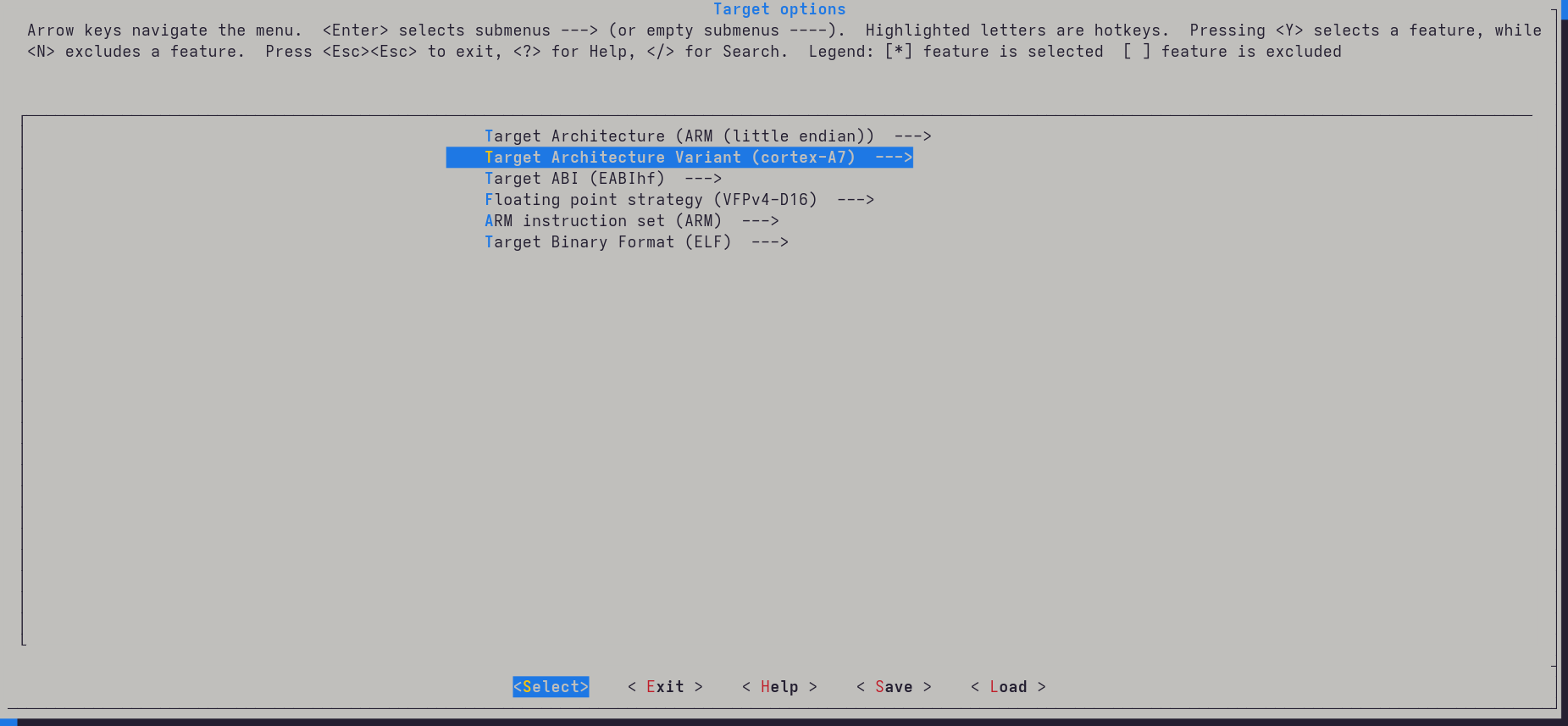
First configure the Target options.

Change the following:

  • Target Architecture → ARM (little endian)
  • Target Architecture Variant → cortex-A7

Buildroot menuconfig -> target_options

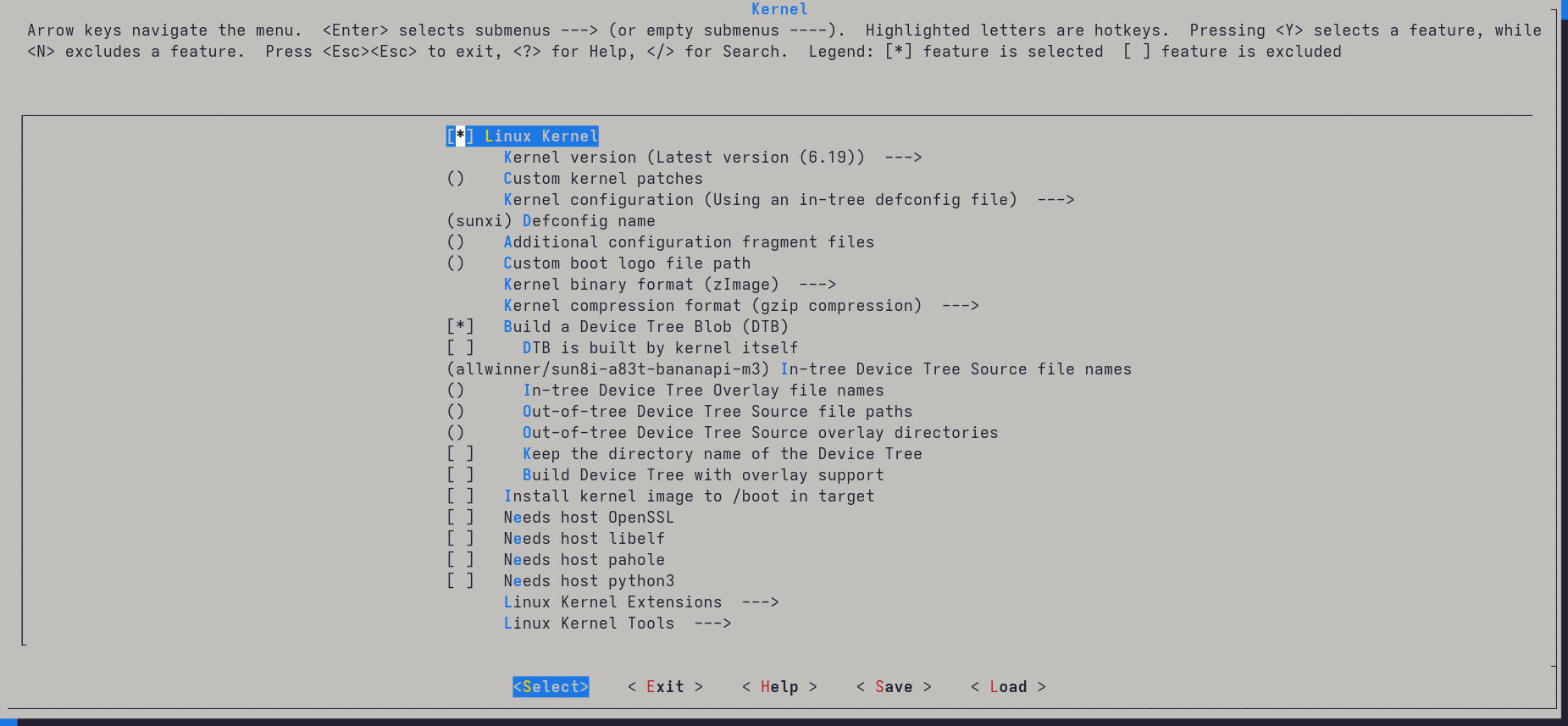
Next go to Kernel and enable the Linux kernel with the following settings:

  • Defconfig name → sunxi
  • Build a Device Tree Blob

  • In-tree Device Tree Source file names: allwinner/sun8i-a83t-bananapi-m3

Buildroot menuconfig -> linux kernel

After this, grab some coffee — the compilation takes around 10–15 minutes.

Preparing the USB disk

Once the build finishes, prepare a USB drive:

sudo mkfs.ext4 /dev/<replace_with_usb_part>
<mount the USB using file manager and copy the usb-drive path>
cp -r output/images/zImage <usb_drive_path>
cp -r output/images/sun8i-a83t-bananapi-m3.dtb <usb_drive_path>
sudo tar xf output/images/rootfs.tar -C <usb_drive_path>

Booting it

Next I tried to boot it using my custom U-Boot:

sunxi-fel uboot u-boot-sunxi-with-spl.bin
<press any key in uart-console>

usb start
ext4load usb 0:1 0x42000000 /zImage
ext4load usb 0:1 0x43000000 /sun8i-a83t-bananapi-m3.dtb
setenv bootargs console=ttyS0,115200 earlycon root=/dev/sda1 rw rootwait
bootz 0x42000000 - 0x43000000

And it almost booted immediately:

=> ext4load usb 0:1 0x42000000 /zImage
5775616 bytes read in 144 ms (38.2 MiB/s)
=> ext4load usb 0:1 0x43000000 /sun8i-a83t-bananapi-m3.dtb
25459 bytes read in 5 ms (4.9 MiB/s)
=> setenv bootargs console=ttyS0,115200 earlycon root=/dev/sda1 rw rootwait loglevel=8
=> bootz 0x42000000 - 0x43000000
Kernel image @ 0x42000000 [ 0x000000 - 0x582100 ]
...
Starting kernel ...

Boot logs started scrolling by, but something strange happened:

usb 1-1.4.2: USB disconnect
usb 1-1.4.2: new high-speed USB device
usb 1-1.4.2: USB disconnect
usb 1-1.4.2: new high-speed USB device
...

Why does my USB device keep connecting and disconnecting?

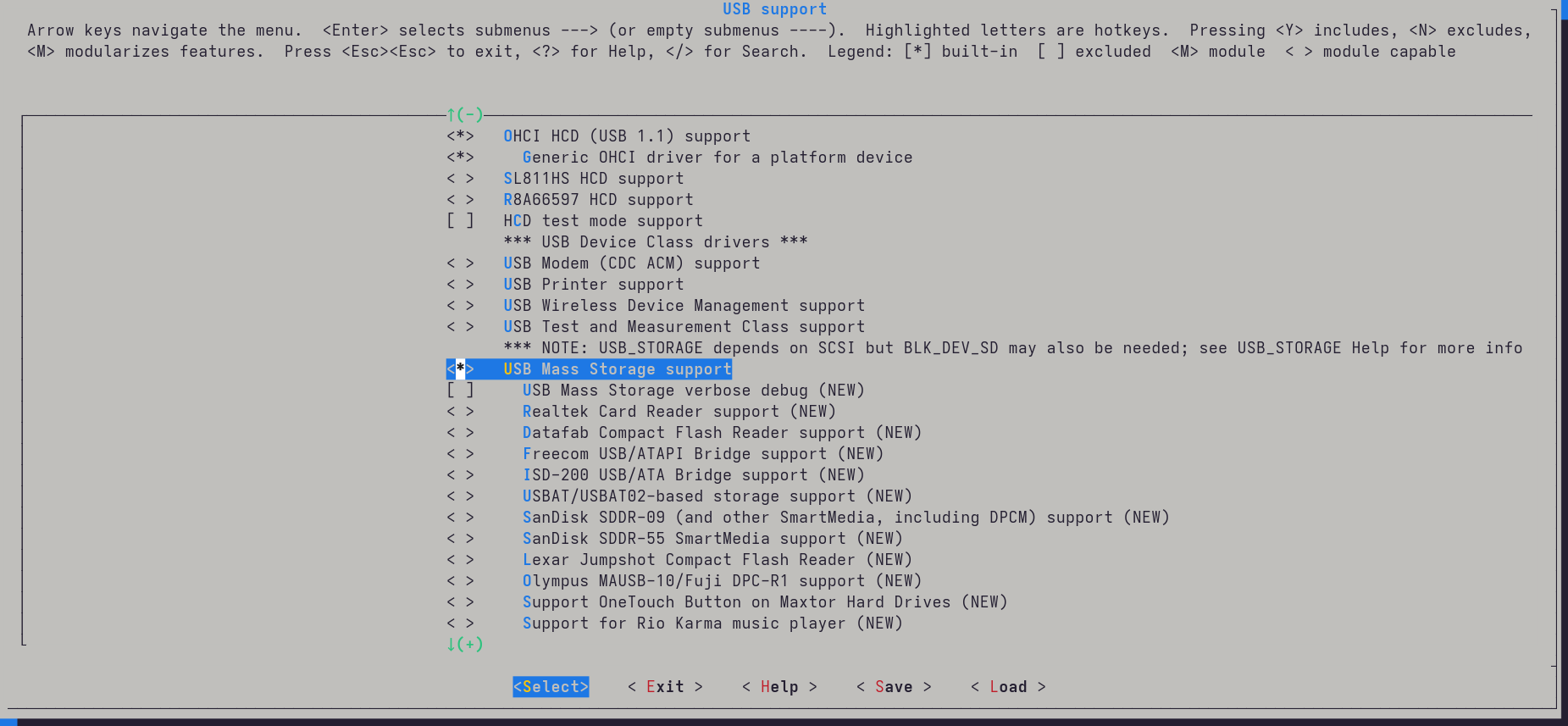
After digging through menuconfig, the answer appeared quickly: USB mass storage support wasn't enabled.

Fixing that was easy.

Run:

make linux-menuconfig

Navigate to:

Device Drivers
 → USB Support
   → USB Mass Storage support

Press space twice so the option becomes * instead of M.

Menuconfig menu -> enable_mass_storage option

Rebuild the kernel and try again.

And this time:

Starting syslogd: OK
Starting klogd: OK
Running sysctl: OK
Starting network: OK
Starting crond: OK

Welcome to Buildroot
buildroot login:

It works!

What's working?

From the limited testing I've done so far:

  • CPU and scheduler work fine
  • HDMI hotplug detection works
  • DRM video output works

This matches the status shown in the mainline effort table pretty well.

The GPU will probably never work on mainline, unfortunately. The SoC uses an Imagination PowerVR SGX544MP1, which only has an old proprietary DDK targeting kernel 3.4:

https://github.com/BPI-SINOVOIP/BPI-M3-bsp/tree/master/linux-sunxi/modules/gpu/sgx544/android/kernel_mode/eurasia_km

Newer kernels aren't supported at all, and it doesn't look like there is any intention to mainline it.

In the end, for our custom Ubuntu Touch build we will probably have to run an older kernel. Ideally I would like to port the driver to at least kernel 4.x, so we can benefit from some of the newer security and stability improvements.

For now though, the next goal is simpler: getting the display working.

According to the mainline effort table, the RGB display interface is supported, so it should be possible to extract the parameters from the Android ROM and use them to construct a working device tree for the panel.

On a Quest to find Sanbot's deepest secrets – Part 4 (Getting U-boot to work)

In part 3 of this quest we discovered the environment variables needed to build U-Boot. Interestingly, they turned out to be remarkably similar to the variables used for the Banana Pi M3.

However, our custom-compiled U-Boot still didn't detect the eMMC memory, which meant we couldn't yet load any custom OS. But guess what? After digging around for a while I finally found some clues and got it working!

The goal of running Ubuntu Touch is getting closer and closer. I can't wait…

Legal note

This research was conducted on hardware legally owned by the author. All analysis is performed for the purposes of interoperability, repair, and educational research.

No proprietary firmware or copyrighted software is redistributed on this site.

Some backstory

In part 1 we attempted to run a custom-compiled U-Boot using configuration values we guessed from the Banana Pi M3, which is quite similar to this board. Both use the same SoC, regulators, and memory configuration, so it seemed like a reasonable starting point.

Unfortunately we got stuck when trying to detect the MMC device:

=> mmc list
=> mmc dev 1
Card did not respond to voltage select! : -110

After searching around for this error, I eventually stumbled upon a blog post on the Armbian forum. That thread referenced a pull request in the Armbian build system.

Following that rabbit hole led me to a patch related to the sunxi_mmc_can_calibrate function.

sunxi_mmc_can_calibrate

In newer releases of U-Boot, the function sunxi_mmc_can_calibrate was introduced. Its job is to automatically calibrate MMC controller timings.

However, the U-Boot team never added an entry for the Allwinner A83T, meaning the calibration logic simply fails by default on this SoC. As a result, the mmc dev command fails because the handshake never completes, the calibration function returns false, preventing the controller from initializing correctly.

The fix turned out to be surprisingly simple: add support for the A83T in the sunxi_mmc_can_calibrate logic.

With this small patch:

From 335c35e6f56b87397d5b6ba74d7676e37269636b Mon Sep 17 00:00:00 2001
From: leo <leo@localhost.localdomain>
Date: Sun, 15 Sep 2024 10:50:38 +0300
Subject: [PATCH 1/2] Add MACH_SUN8I_A83T to can calibrate

Add the A83T processor to the sunxi_mmc_can_calibrate
logic function for proper configuration.

---
 drivers/mmc/sunxi_mmc.c | 1 +
 1 file changed, 1 insertion(+)

diff --git a/drivers/mmc/sunxi_mmc.c b/drivers/mmc/sunxi_mmc.c
index 9534f9ac35..9493bd8639 100644
--- a/drivers/mmc/sunxi_mmc.c
+++ b/drivers/mmc/sunxi_mmc.c
@@ -62,6 +62,7 @@ static bool sunxi_mmc_can_calibrate(void)
           IS_ENABLED(CONFIG_MACH_SUN50I_H5) ||
           IS_ENABLED(CONFIG_SUN50I_GEN_H6) ||
           IS_ENABLED(CONFIG_SUNXI_GEN_NCAT2) ||
+          IS_ENABLED(CONFIG_MACH_SUN8I_A83T) ||
           IS_ENABLED(CONFIG_MACH_SUN8I_R40);
 }

-- 
2.35.3

…the MMC controller finally came to life:

=> mmc list
mmc@1c0f000: 0
mmc@1c10000: 2
mmc@1c11000: 1
=> mmc dev 1
switch to partitions #0, OK
mmc1(part 0) is current device
=> mmc info  
Device: mmc@1c11000
Manufacturer ID: 11
OEM: 0
Name: 016G70 
Bus Speed: 52000000
Mode: MMC High Speed (52MHz)
Rd Block Len: 512
MMC version 5.0
High Capacity: Yes
Capacity: 14.7 GiB
Bus Width: 8-bit
Erase Group Size: 512 KiB
HC WP Group Size: 4 MiB
User Capacity: 14.7 GiB WRREL
Boot Capacity: 4 MiB ENH
RPMB Capacity: 4 MiB ENH
Boot area 0 is not write protected
Boot area 1 is not write protected
=> mmc part

Partition Map for mmc device 1  --   Partition Type: DOS

Part    Start Sector    Num Sectors     UUID            Type
  1     5382144         25493504        00000000-01     0b Boot
  2     73728           65536           00000000-02     06
  3     1               5242880         00000000-03     05 Extd
  5     139264          32768           00000000-05     83
  6     172032          32768           00000000-06     83
  7     204800          4194304         00000000-07     83
  8     4399104         65536           00000000-08     83
  9     4464640         32768           00000000-09     83
 10     4497408         65536           00000000-0a     83
 11     4562944         524288          00000000-0b     83
 12     5087232         32768           00000000-0c     83
 13     5120000         32768           00000000-0d     83
 14     5152768         1024            00000000-0e     83
 15     5153792         31744           00000000-0f     83
 16     5185536         163840          00000000-10     83
 17     5349376         32768           00000000-11     83
=> 

Finally! With working MMC access we can now explore the Sanbot's internal storage directly from U-Boot, opening the door for booting our own operating system.

The source code for this modified U-Boot can be found on GitHub: opendutchsolutions/u-boot-sanbot

On a Quest to find Sanbot's deepest secrets – Part 3 (Rooting the tablet and dumping the ROM)

Part 2 of the quest focused on figuring out how the tablet communicates with its internal control boards.
In this post we return to part 1, where we explored several ways to dump the tablet's ROM.

Unfortunately we were not able to successfully dump it in part 1.
In this post we finally manage to extract the ROM using the DirtyCow root exploit and adb.

Legal note

This research was conducted on hardware legally owned by the author. All analysis is performed for the purposes of interoperability, repair, and educational research.

No proprietary firmware or copyrighted software is redistributed on this site.

Very old kernel + old android == exploits

The tablet inside the robot is based on an Allwinner A83T SoC.It contains an octa-core ARM Cortex-A7 CPU together with a PowerVR SGX544MP1 GPU you can read more about this mediocre ic here. Or you can read the rant blog posts on armbian about trying to support this device, with maintainers having headaches due to the bad performance and proprietary blobs for the Power VR GPU.

Because of the vendor BSP provided by Allwinner, the system is effectively locked to the very old 3.14.39 kernel. On top of this kernel runs a slimmed-down Android 6.0 system.

Because the software stack is extremely outdated, several well-known privilege-escalation exploits remain available. One of them was dirtyCow. I followed the instructions from GetRoot-Android-DirtyCow by jOnkO. Which fortunately worked right out of the box.

$ adb shell run-as
...
...
root@octopus_qh106 # id -u
0

With the root shell now working, there was one thing left to do...

Dump the rom

Dumping the ROM once root access is available is fairly straightforward. The first step is determining which block device contains the eMMC:

ls /dev/block*

From there it is easy to figure out we need to dump mmcblk0. Though dumping the whole mmcblk0 means we get a ~16GB image, which we need to store somewhere. First I thought of using an external USB stick as that might give higher transport speeds then transferring it using WiFi (SDIO-wifi ~ 2Mb/s from what i've tried) or ADB (USB HS 480Mbps). Though quickly I found out, I could only write using the FUSE layer mounted /storage/ location.

But by trying to dump it to USB stick, the FUSE layer gave up and crashed. That's why I eventually settled on transferring over ADB. To dump over adb, I did the following:

1) Set-up reverse forwarding of port 10000

adb reverse tcp:10000 tcp:10000

2) Set-up listening socket on my laptop, which dumps data to an android_dump.img file.

nc -l 10000 > android_dump.img

3) Start the root shell using ADB and using dd with pipe to netcat which sends it over the reverse forwarding connection.

dd if=/dev/block/mmcblk0 | toybox nc -q 0 127.0.0.1 10000

After 30 minutes of waiting, I had my firmware dump.

What's in the dump

Well, all the apps of course, but those were already extracted earlier.. What I was really after were the DRAM, eMMC and power-management configuration settings required to build my own U-Boot.

It was tough finding this information in the image as they compiled the configuration options into u-boot as a static binary. which is notoriously difficult to reverse-engineer.. Though I found these settings;

platform:
  soc_family: sunxi
  soc_arch: sun8i
  probable_soc: sun8i-a83t
  bootloader: u-boot
  vendor: allwinner
  secure_mode_strings:
    - SUNXI_SECURE_MODE
    - SUNXI_NORMAL_MODE

boot_environment:
  console: "ttyS0,115200"
  nand_root: "/dev/system"
  mmc_root: "/dev/mmcblk0p7"
  init: "/init"
  loglevel: "4"
  selinux: "disabled"

boot_variables:
  bootdelay: 0
  bootcmd: "run setargs_nand boot_normal"
  boot_normal: "sunxi_flash read 40007800 boot;boota 40007800 boot"
  boot_recovery: "sunxi_flash read 40007800 recovery;boota 40007800 recovery"
  boot_fastboot: "fastboot"

boot_arguments:
  setargs_nand: >
    setenv bootargs
    console=${console}
    root=${nand_root}
    init=${init}
    vmalloc=384M
    ion_cma_list="120m,176m,512m"
    loglevel=${loglevel}
    partitions=${partitions}
    androidboot.selinux=${selinux}

  setargs_mmc: >
    setenv bootargs
    console=${console}
    root=${mmc_root}
    init=${init}
    vmalloc=384M
    ion_cma_list="120m,176m,512m"
    loglevel=${loglevel}
    partitions=${partitions}
    androidboot.selinux=${selinux}

key_triggers:
  recovery_key_value_min: "0x10"
  recovery_key_value_max: "0x13"
  fastboot_key_value_min: "0x2"
  fastboot_key_value_max: "0x8"

mmc_configuration_strings:
  mmc_devices:
    - MMC0
    - MMC2
  mmc_root: "/dev/mmcblk0p7"
  mmc_slots_detected:
    - mmc0
    - mmc1
    - mmc2

  mmc_commands_available:
    - mmc dev
    - mmc list
    - mmc part
    - mmc rescan
    - mmcinfo
    - mmc read
    - mmc write
    - mmc erase

sunxi_flash_commands:
  - sunxi_flash read
  - sunxi flash log_read
  - sunxi flash phy_read

fastboot_support:
  enabled_strings:
    - sunxi fastboot
    - fastboot download
    - fastboot erase
    - fastboot flash

usb_boot_modes:
  efex_mode_strings:
    - SUNXI_USB_EFEX_BOOT0_TAG
    - SUNXI_USB_EFEX_BOOT1_TAG
    - SUNXI_USB_EFEX_MBR_TAG
    - SUNXI_USB_EFEX_ERASE_TAG

  usb_modes:
    - fastboot
    - efex
    - pburn

security_features:
  signature_verification:
    - sunxi_verify_signature
    - sunxi_verify_rotpk_hash
  rsa_engine:
    - sunxi_rsa_calc
  sha_engine:
    - sunxi_sha_calc

secure_storage:
  functions:
    - sunxi_secure_storage_read
    - sunxi_secure_storage_write
    - sunxi_secure_storage_erase
    - sunxi_secure_storage_erase_all
    - sunxi_secure_storage_list

dram_configuration_strings:
  dram_parameters:
    - dram_clk
    - dram_type
    - dram_zq
    - dram_odt_en
    - dram_para1
    - dram_para2
    - dram_mr0
    - dram_mr1
    - dram_mr2
    - dram_mr3
    - dram_tpr0
    - dram_tpr1
    - dram_tpr2
    - dram_tpr3
    - dram_tpr4
    - dram_tpr5
    - dram_tpr6
    - dram_tpr7
    - dram_tpr8
    - dram_tpr9
    - dram_tpr10
    - dram_tpr11
    - dram_tpr12
    - dram_tpr13

pmic_strings:
  pmic: axp81x
  regulators:
    - dcdc1
    - dcdc2
    - dcdc3
    - dcdc4
    - dcdc5
    - fldo1
    - fldo2
    - aldo1
    - aldo2
    - aldo3
    - eldo1
    - eldo2
    - eldo3

boot_modes:
  supported_modes:
    - normal
    - recovery
    - fastboot
    - sprite_test
    - usb_efex

graphics_boot:
  bmp_functions:
    - sunxi_bmp_logo_display
    - sunxi_bmp_charger_display
    - sunxi_bmp_show
    - sunxi_bmp_display

filesystem_boot:
  boot_partition_load_address: "0x40007800"
  boot_image_name: "boot"
  recovery_image_name: "recovery"

misc_strings:
  uboot_prompt: "sunxi#"
  console_uart: "sunxi_serial"
  hardware_string: "sunxi_hardware"

And yes they did set the bootdelay=0 param, so you can't activate any u-boot shell.

The legacy Allwinner BSP used by this Android system relies on FEX files to describe the board configuration for both U-Boot and the Android boot image. This predates the now standard device-tree based configuration used in modern kernels.

On a Quest to find Sanbot's deepest secrets – Part 2 (USB protocol)

With part 1 ending in a dump of the Android applications running on the robot, it was time to investigate whether the robot could be controlled directly from a computer over the USB connection using the information obtained from that dump.

Legal note

This research was conducted on hardware legally owned by the author. All analysis is performed for the purposes of interoperability, repair, and educational research.

No proprietary firmware or copyrighted software is redistributed on this site.

Plugging the robot into my USB port

The first thing I had to do was partially disassemble the robot, because we need to access the internal USB port of the tablet. Where we can unplug the USB cable going to the MCU Head and body controller as well as the camera's and microphones.

After plugging in the USB cable and running lsusb the following devices appeared:

$ lsusb
Bus 001 Device 017: ID 2bc5:0401 Orbbec 3D Technology International, Inc Astra
Bus 001 Device 018: ID 05e3:0608 Genesys Logic, Inc. Hub
Bus 001 Device 019: ID 0483:5741 STMicroelectronics XXXXXXXXX-STM32 Virtual COM Port
Bus 001 Device 020: ID 1d6b:0102 Linux Foundation EEM Gadget
Bus 001 Device 021: ID 0483:5740 STMicroelectronics Virtual COM Port

From this it becomes clear that the robot exposes two USB CDC-ACM ports (VCOM) for the STM32 microcontrollers, presumably one for the head controller and one for the body controller. One 3d-camera from orbbec and Linux foundation EEM-gadget, which is the microphone and HD-camera situated in the head.

Orbbec 3D-Camera

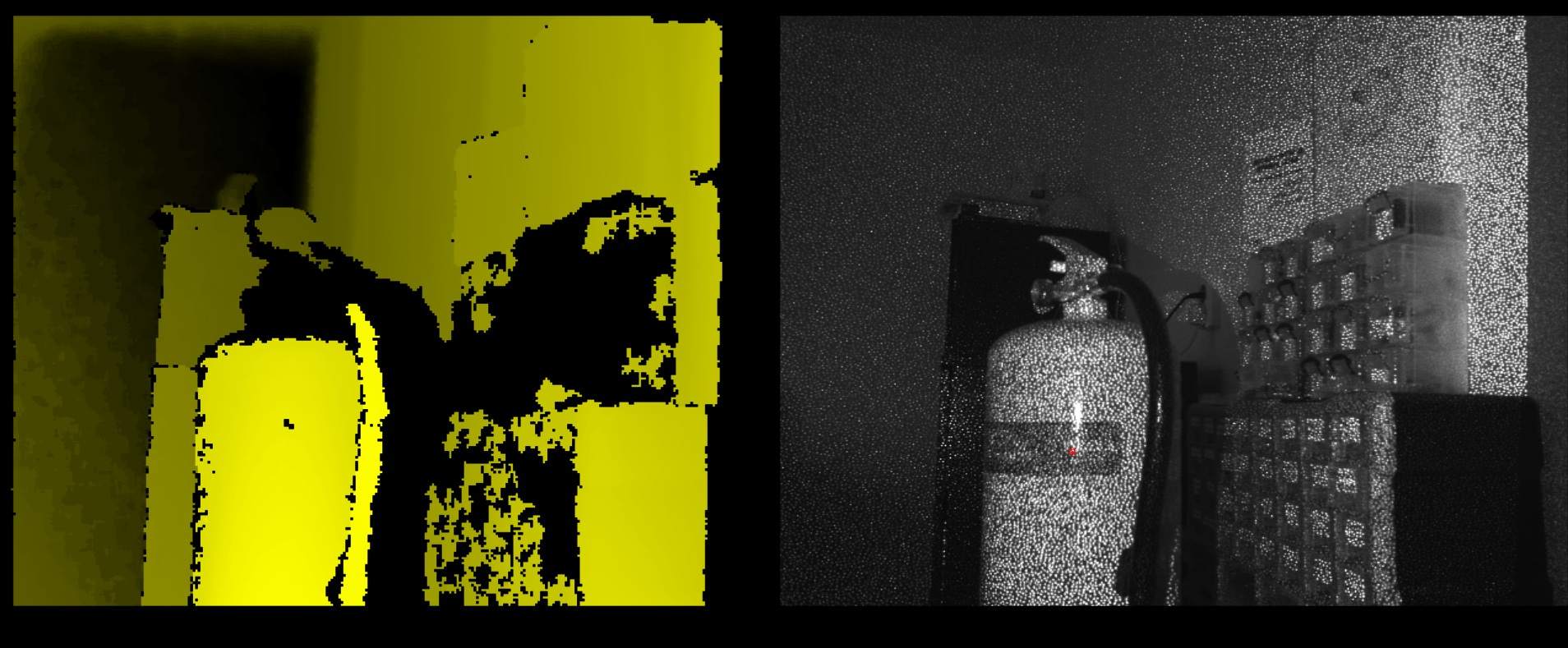
The orbbec 3D camera matches with the astra orbbec camera driver, I found for windows on the GitHub of Vidicon Sanbot elf hacking project. And with firing up Windows, because the Linux SDK depends on very old libraries and I first wanted to get something working quickly. I was greeted with this screen using this openni-sdk. Later on when refitting this robot with new hardware/software, I will probably port the old openni-sdk to new dependencies as far as it is possible.

Orbbec astra 3d-shot of fire-extinguisher

HD-Camera, Microphones and Zigbee

The HD-Camera, Microphones and Zigbee are handled by the EEM gadget:

Bus 001 Device 020: ID 1d6b:0102 Linux Foundation EEM Gadget

This device runs its own small Linux-based firmware which manages the HD camera and the beamforming microphone array. To get that working I did some first attempts to reverse engineer the communications and found some useful clues. Such as there is a service running on the android tablet which sends the HD camera footage over local http port 5500. Which with adb forwarding can be easily captured to your pc.

Although it is interesting, I rather leave this work for a future blog post.

Microcontrollers usb protocol

The microcontrollers are connected to the tablet via USB CDC-ACM and expose virtual serial ports over which a custom framed binary protocol is sent.

The protocol has the format:

+--------------------+------------------------------+
| 16-byte header     | Content section              |
+--------------------+------------------------------+

The header consists of:

Offset Size Field Example Description
0 2 type A4 03 Message type (Java short -235490xA403)
2 2 subtype 00 00 Usually 0
4 4 msg_size 00 00 00 0C 32-bit content length
8 1 ack_flg 01 Ack flag
9 7 unuse 00..00 Always zero padding

Content section begins at offset 16

Content structure

The content section got the following structure:

|-- FRAME_HEAD (2B) --| ACK (1B) |-- MMNN (2B) --|----------- PAYLOAD (N B) -----------| CHECKSUM (1B) |
|                     |          |               |                                    |               |
| example: FF A5      | example:01 | example:00 07 | example: 04 02 00 04 00 00        | example: B6   |

LED Command Payload

|CMD|SUB|WHICH|MODE|RATE|RAND|
|04 |02 | ..  | .. | .. | .. |

Fields

Field Size Description
CMD 1 byte Command group. Always 0x04 for LED control.
SUB 1 byte LED subcommand. Always 0x02.
WHICH 1 byte Selects which LED group to control.
MODE 1 byte LED color or animation mode.
RATE 1 byte Speed or delay parameter for animations.
RAND 1 byte Randomization count used by some animation modes.

The payload is constructed as:

[0x04, 0x02, which_light, mode, rate, random_count]

WHICH (LED Target)

Value LED Group
0 All LEDs
1 Wheel LEDs
2 Left hand LEDs
3 Right hand LEDs
4 Left head LEDs
5 Right head LEDs
10 Head ring

MODE (LED Behavior)

Common values observed:

Value Behavior
1 Turn LEDs off
3 Red
4 Green
7 Blue
19–25 Various blinking / flicker animation modes

RATE

Controls animation timing.

Typical usage:

Value Meaning
0 Default speed
>0 Increasing delay / slower animation

RAND

Randomization parameter used by certain animation modes.

Value Meaning
0 Disabled
>0 Number of random iterations

Example

Turn head ring LEDs green:

04 02 00 04 00 00

Meaning:

Field Value Meaning
CMD 04 LED command
SUB 02 LED control
WHICH 00 Head ring
MODE 04 Green
RATE 00 Default speed
RAND 00 No randomness

Summary

┌───────────────────────────────────────────────────────────────────────────────────────────────────────────┐
│                                                                                                           │
│ TYPE        SUBTYPE      MSG_SIZE         ACK     UNUSED PADDING                                          │
│ 2 bytes     2 bytes      4 bytes          1       7 bytes                                                  │
│ A4 03       00 00        00 00 00 0C       01      00 00 00 00 00 00 00                                      │
│                                                                                                           │
├──────────────────────────────────────────── Header (16 bytes) ───────────────────────────────────────────┤
│                                                                                                           │
│ FRAME_HEAD      ACK      MMNN (payload+1)      PAYLOAD (N bytes)                  CHECKSUM                │
│ 2 bytes         1        2 bytes               variable                           1 byte                  │
│ FF A5           01       00 07                 04 02 00 04 00 00                   B6                      │
│                                                                                                           │
├──────────────────────────────────────────── Content Section ─────────────────────────────────────────────┤
│                                                                                                           │
│                                  Total Frame = 22 + payload_len                                           │
│                                                                                                           │
└───────────────────────────────────────────────────────────────────────────────────────────────────────────┘

On a Quest to find Sanbot's deepest secrets – Part 1

With the Sanbot repaired in blog posts #1 and #2, it’s time to address the next bottleneck: the aging tablet inside the robot.

The tablet runs Android 6 and, due to its limited CPU performance and RAM capacity, cannot run newer Android versions. Now that this tablet is roughly eight years old (ancient in Android years), it’s time to uncover its deeper workings and possibly replace it with something that doesn’t struggle to open the settings menu.

Legal note

This research was conducted on hardware legally owned by the author. All analysis is performed for the purposes of interoperability, repair, and educational research.

No proprietary firmware or copyrighted software is redistributed on this site.


About the Tablet

The tablet inside the Sanbot effectively runs the entire robot. It is built around an Allwinner A83T SoC on a custom PCB. Through a USB connection, it communicates with and controls the robot’s subsystems head board, main board, MCU, the whole circus.

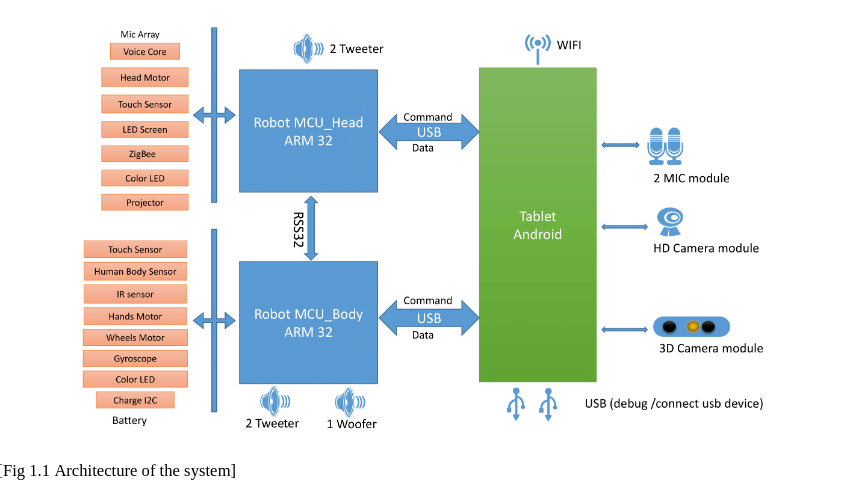
As shown in this block diagram from Igor Lirussi’s thesis:

Block diagram of the Sanbot

Which means: if we want to retrofit or replace this tablet, we either need:

  • A full firmware (ROM) dump
  • Or at least the relevant system applications responsible for robot communication

Preferably the ROM. Because pain is optional.


Plan of Attack

The easiest way to obtain a firmware dump is usually to locate official update packages. Vendors love hosting update files somewhere. Sometimes even publicly. Sometimes accidentally. Sometimes hidden behind 2005-era PHP endpoints.

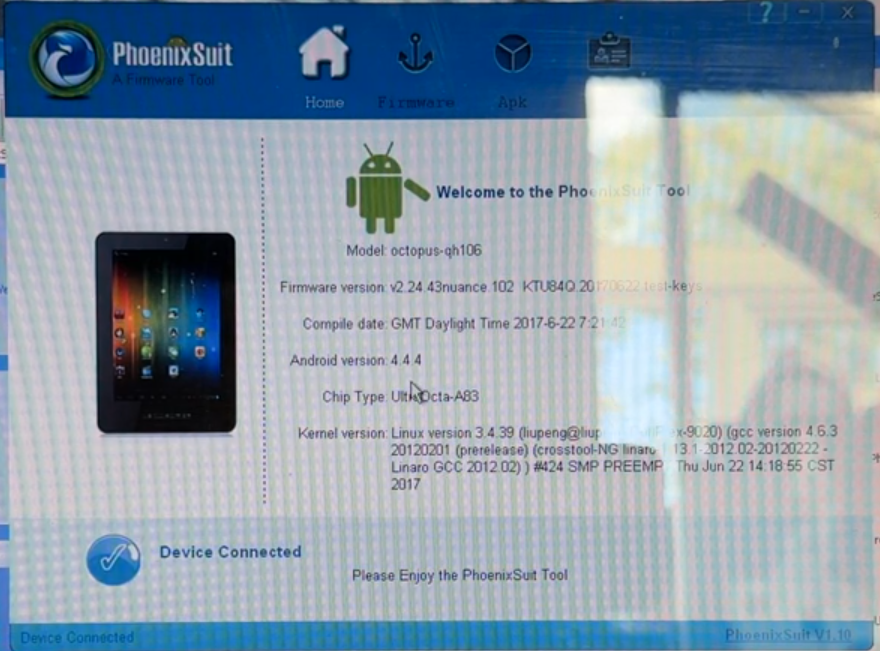
While searching online, I found this YouTube video from Simon Burfield, showing how to enable Android developer mode and update the software using PhoenixSuit:

Phoenixsuit software screenshot from the upgrade video

PhoenixSuit is an Allwinner flashing tool

This suggests the tablet uses Allwinner’s flashing mechanism rather than standard Android OTA recovery. Meaning: somewhere, at some point, there must exist a firmware image.

I could email Sanbot and politely ask for it.

But where’s the fun in that?


Options to Consider

  1. Profile the upgrade app via ADB
  2. Monitor logcat
  3. Capture HTTP requests
  4. Identify update endpoints
  5. Try to replicate requests manually

  6. Enable developer mode and dump installed APKs

  7. Pull system apps via ADB
  8. Reverse engineer communication routines
  9. USB-sniff traffic between tablet and robot boards
    (Decompiling is a last resort. We’re civilized.)

  10. Go full hardware mode

  11. Solder a UART adapter
  12. Access U-Boot
  13. Dump NAND directly
  14. If that fails: abuse Allwinner FEL mode and upload custom U-Boot

Naturally, I chose chaos.


Profiling the Upgrade App

Since a full firmware dump would make life easier, I started with the upgrade app.

Enabling developer mode required connecting the tablet to WiFi. Because apparently you cannot enable developer mode without first saying hello to the mothership.

After graciously sharing my IP address with the manufacturer, I connected via ADB and ran:

adb logcat | grep -i http

Which yielded:

https://market.sanbotcloud.com:22281/Interface/file_link2.php?mark=SYS&version=v1.10.41.118&...
https://market.sanbotcloud.com:22281/Interface/update.php?mark=MCU&cond=TOP&...
https://market.sanbotcloud.com:22281/Interface/update.php?mark=MCU&cond=BOTTOM&...

Two interesting endpoints appear:

  • file_link2.php → likely ROM updates
  • update.php → likely MCU firmware (main & head boards)

Promising.


Manual API Probing

Naturally, I tried poking the API directly:

curl -k "https://market.sanbotcloud.com:22281/Interface/file_link2.php?mark=SYS&version=v1.10.41.118&..."

Response:

{"result":"1","fileList":"该版本已是最新版本"}

Translation:

“Already the latest version.”

I tried:

  • Fake versions
  • Older versions
  • Modified parameters

Nothing. No firmware URL. No file list. No jackpot.

The server was not impressed.


Adding UART and Trying to Dump ROM via U-Boot

Time to escalate.

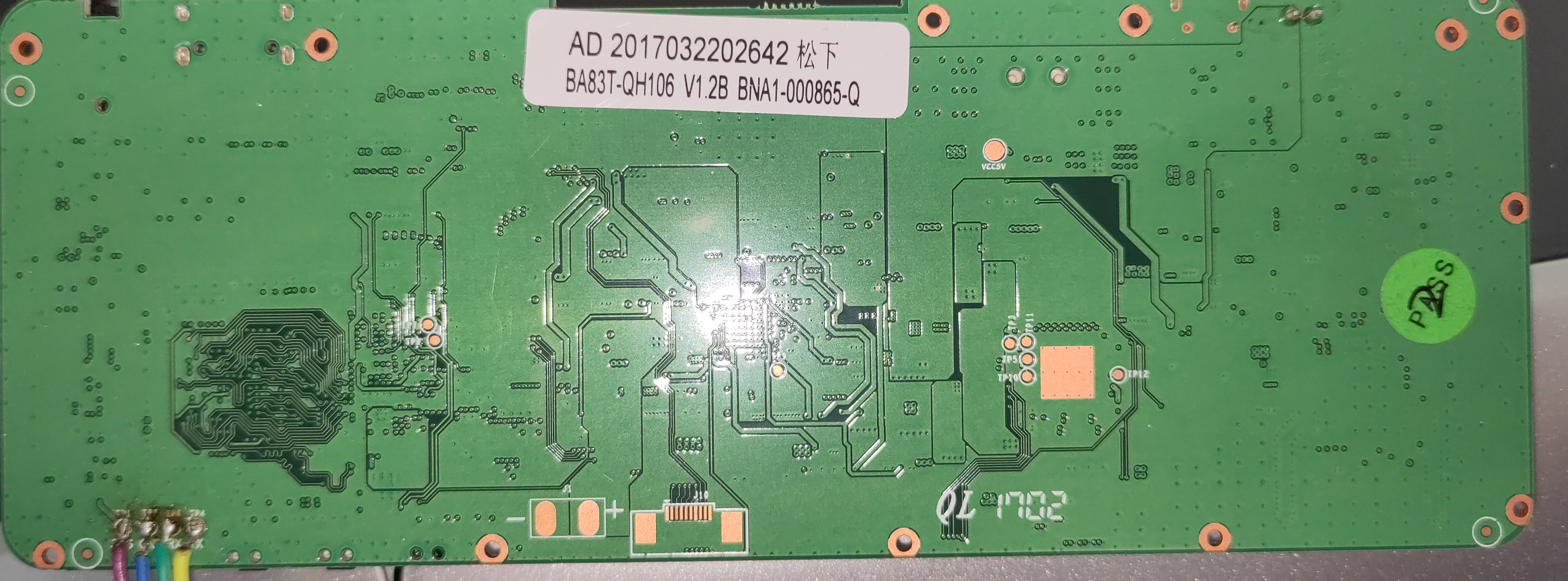
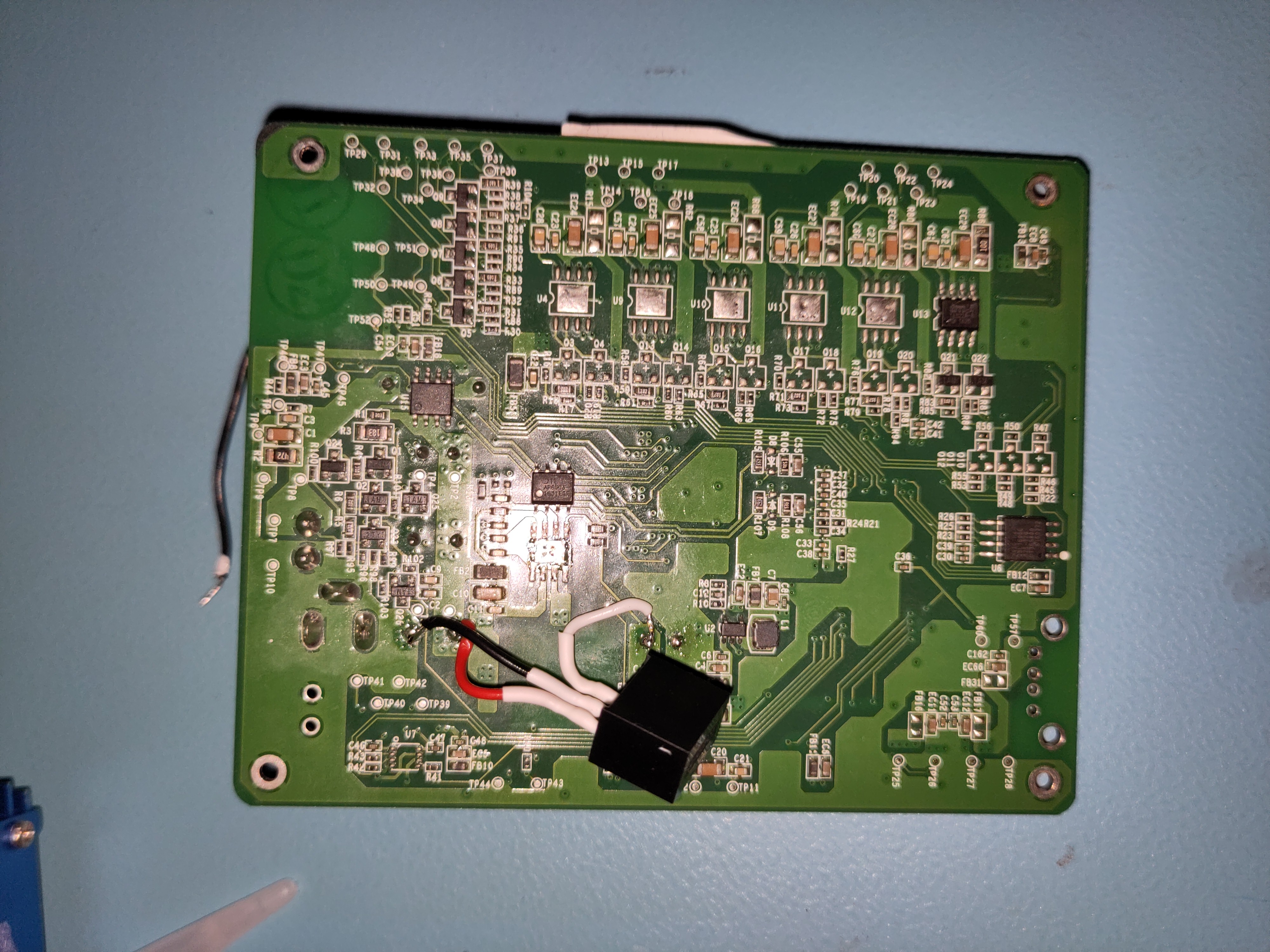
This meant soldering wires to the backside of the tablet PCB.

Backside of the sanbot A83T tablet PCB

And I was rewarded with a U-Boot log:

U-Boot 2011.09-rc1-00000-g0c9f221-dirty (Jul 08 2017)
Allwinner Technology
Ofcourse, trying the legendary press any key trick seems promising…

The legendary uboot press any key meme

until it wasn’t.

Boot continued, kernel loaded, Android started… but no interactive U-Boot prompt. No console. No interruption window.

They locked the UART console in U-Boot.


Fine. We Bring Our Own U-Boot.

If we can’t use theirs, we load ours.

Using Allwinner FEL mode, I compiled a custom U-Boot build and attempted to access the eMMC:

=> mmc list
=> mmc dev 2
Card did not respond to voltage select! : -110

All attempts resulted in:

MMC: no card present

Which is impressive, considering Android clearly booted from something.

The issue: I didn’t have the original .bin configuration or correct DTS settings. Without the proper DRAM and MMC configuration, U-Boot simply refuses to talk to the eMMC.

So I had:

  • A working Android system
  • A custom U-Boot
  • Full control over FEL mode
  • Zero storage access

Beautiful.

At this point, brute-force hardware dumping was becoming an exercise in masochism.

So I pivoted.


Reverse Engineering the Apps

If we can’t extract the ROM cleanly, we extract what matters:

The apps that control the robot.

Because somewhere inside those APKs lies:

  • The USB protocol
  • The command structure
  • The robot control logic
  • And possibly the key to replacing this ancient tablet entirely

Time to open JADX.

To be continued…
Repairing a Sanbot Elf Robot Dock

Previously, we repaired the power supply of the Sanbot Elf itself. The robot originally came with a charging dock. Unfortunately, I quickly discovered that the dock supplied with the robot had also failed.

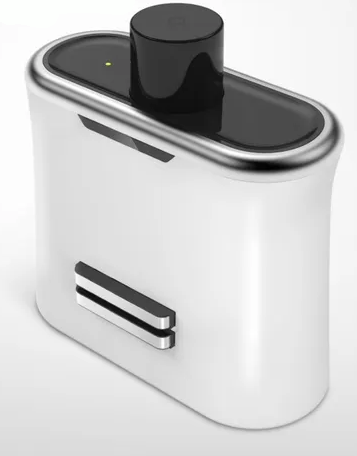
For reference this is what the dock looks like:

Image of the Sanbot Elf Dock

Lack of Online-resources

There is almost no technical information available online about this dock beyond basic specifications such as dimensions, input voltage, and status indicators. However, it likely contains Zigbee and infrared functionality. I suspect the large dome on top is used for IR docking detection, while Zigbee may be used to negotiate a successful docking event before enabling the charging output. This would make sense, as the robot is known to generate noticeable inrush current sparks when directly connected to the adapter.

Disassembly

Disassembly is straightforward: remove the four screws at the back and carefully separate the front and rear housing halves. As usual with Qihan products, locking tabs are used, so gentle wiggling is required.

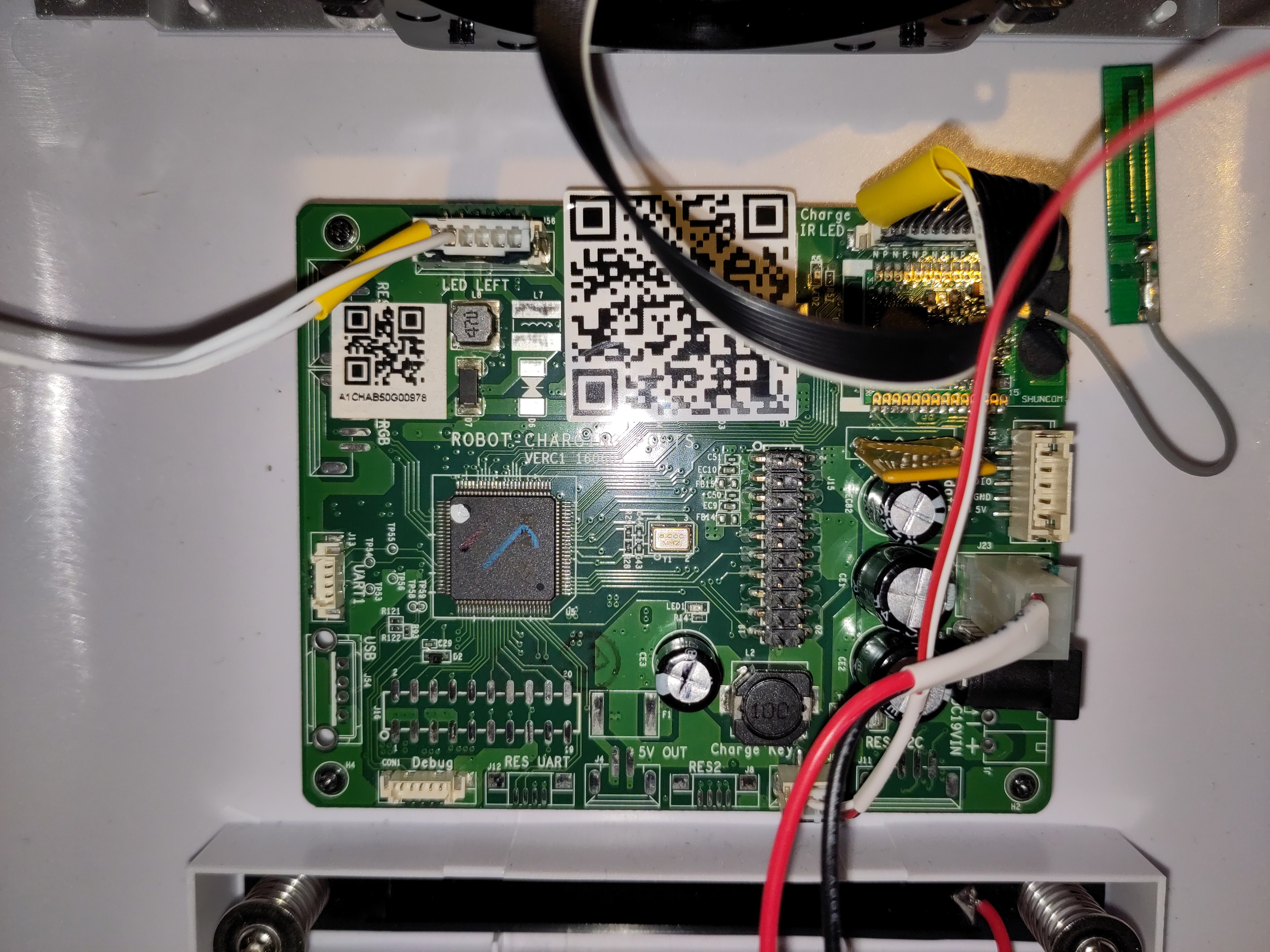
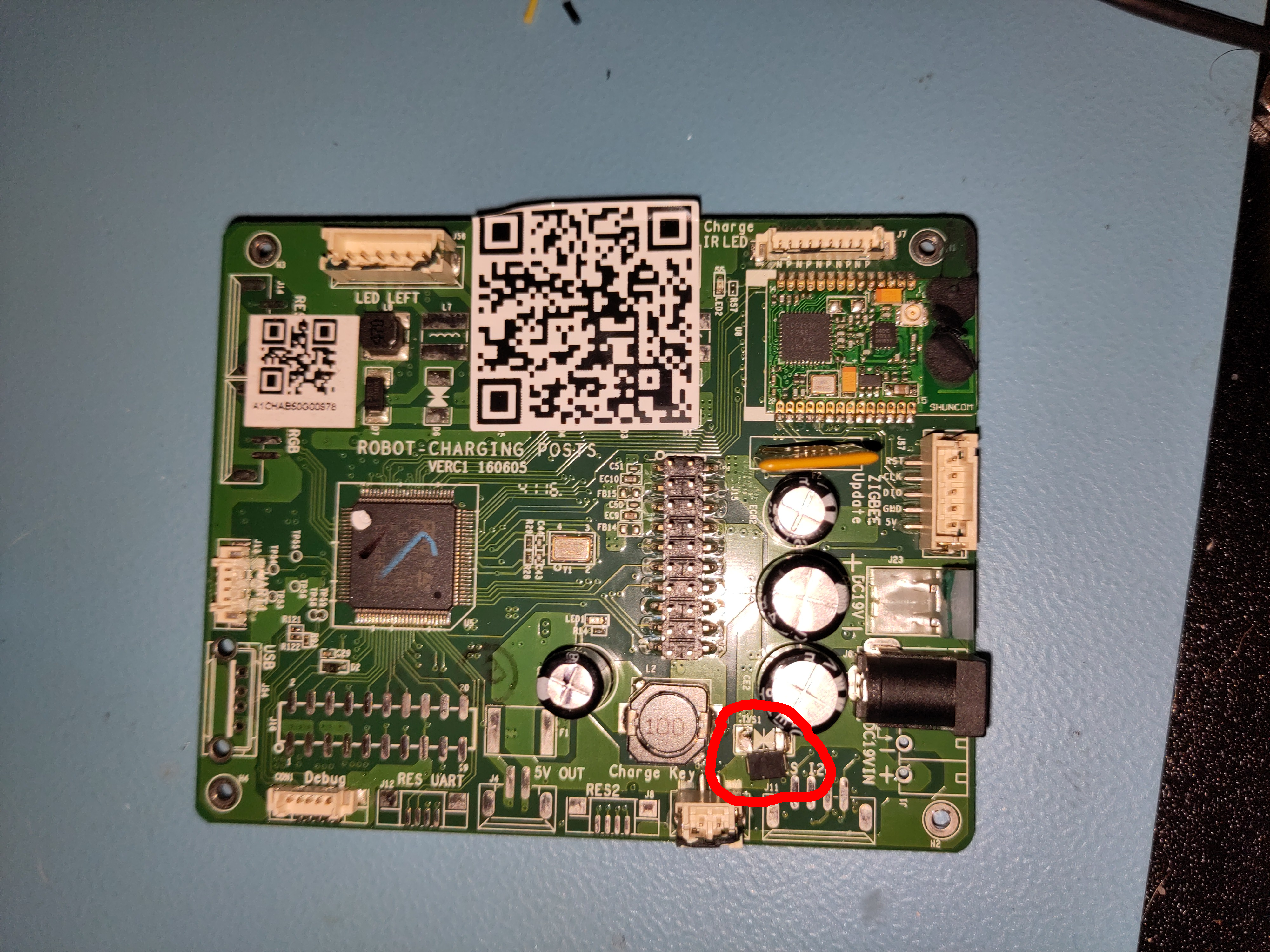
Inside, there will be a small circuitboard which runs the whole dock.

Picture of the PCB inside the Sanbot elf dock

The next step was to power it from a bench power supply and observe its behavior.

Issue 1: TVS diode shorting the supply lines

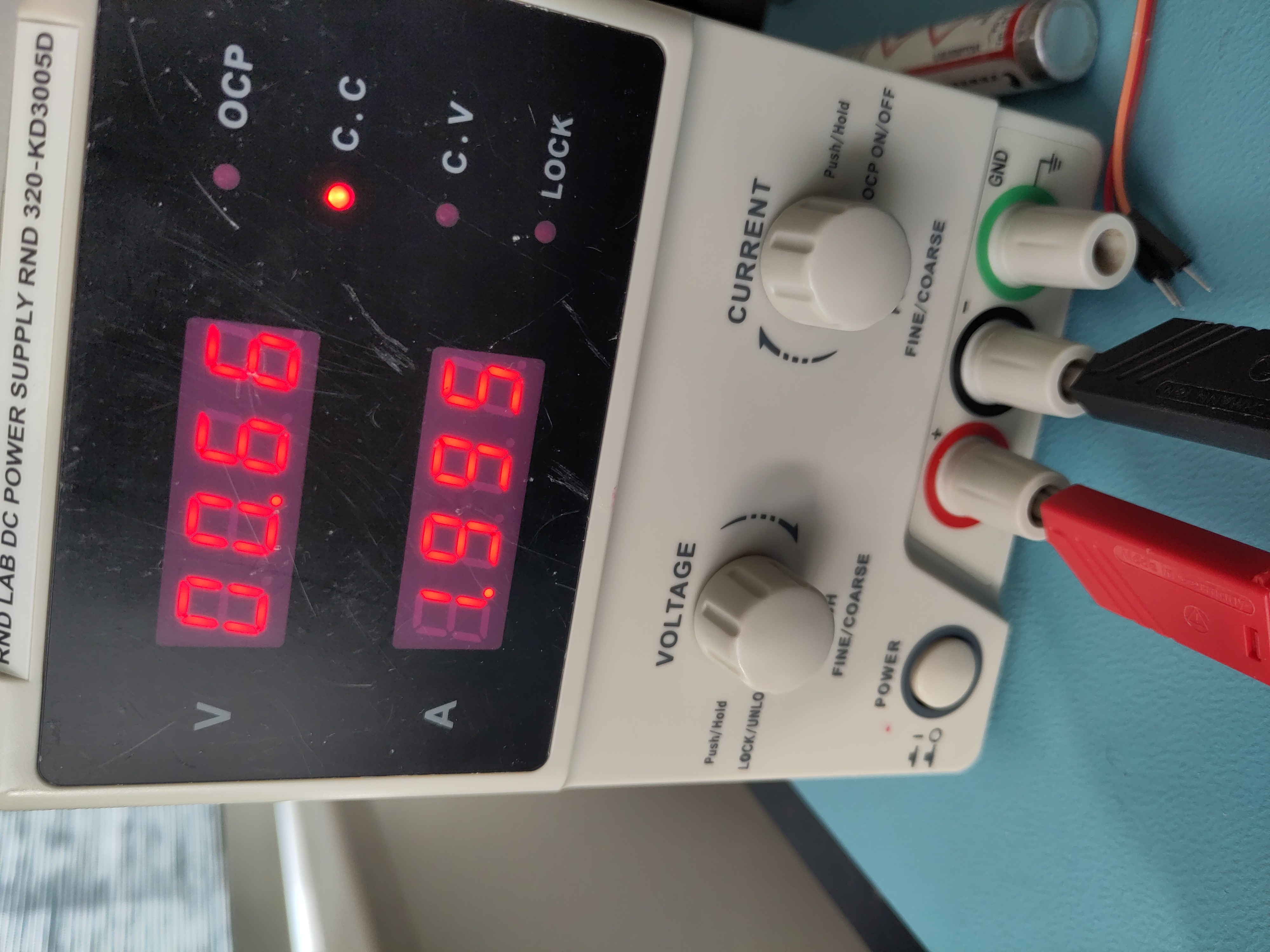
While powering the robot dock from my lab bench power supply, I noticed again that my 2A limit on my bench supply was reached immediately.

Picture of the labbench power supply being shorted

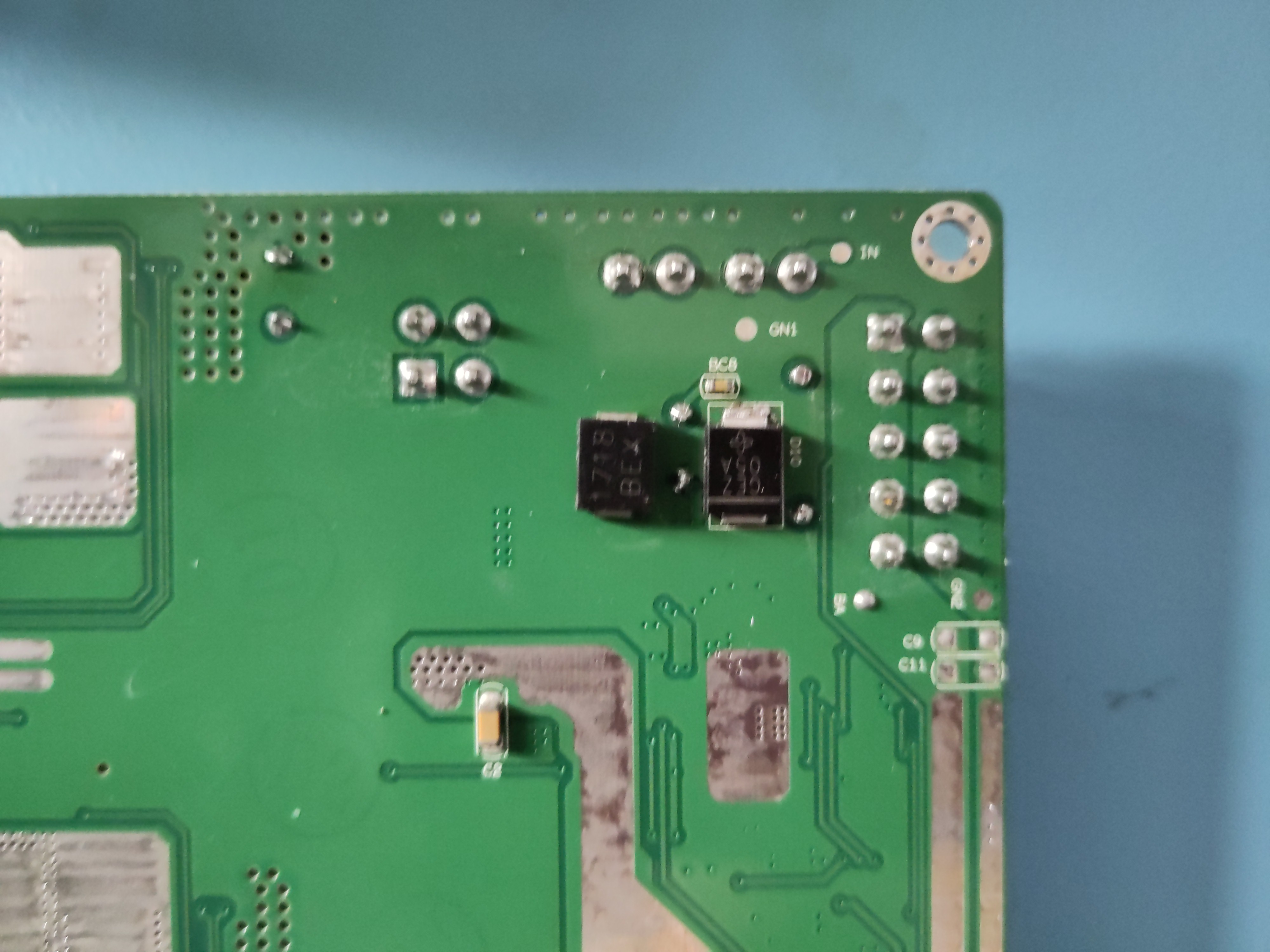
Ofcourse, I went on a search trying to find what was shorting my supply. Once again, the culprit turned out to be a diode, this time a TVS diode across the input lines.

A failed TVS diode was an obvious suspect, as these devices are connected directly across the supply rails to clamp voltage spikes, but when they fail, they often fail short-circuit, effectively placing a direct short across the supply.

To fix it I desoldered the diode, and left it unpopulated for now:

Picture of the desoldered diode

Issue fixed right?! Now the device should turn on.... Well nope. Something else is still defective.

Issue 2: Missing 3.3V line

Like most microcontroller-based systems, the dock operates from a 3.3V logic supply. Since the input voltage is 19V, it must be stepped down to 3.3V using a switching regulator.

The regulator used on the board is an AP6503 synchronous buck converter from Diodes Inc. Pretty good regulator for the money, though the measurements showed that the regulator was not producing the expected 3.3V output. I removed the faulty AP6503 and replaced it with a RECOM 3.3V buck regulator module, which I had available in my parts stock.

Picture of the replaced regulator

Now the device powers up and connects to the robot.

Conclusion

A shorted TVS diode across the input and a failed 3.3V regulator prevented the dock from powering up. Removing the failed TVS diode and replacing the regulator restored full functionality to the dock.

Repairing a Sanbot Elf Robot That Doesn’t Charge Anymore

As some of you might know, I’ve always had an interest in repairing old and obscure hardware. One of my contacts approached me and mentioned he wanted to get rid of the robot because it no longer charged. Of course, I told him I’d be very interested in taking a look at it. At the end it turned out to be a shorted reverse-protection diode on the board. I am happy I could fix this bot easily with a new 5-cent diode.

Background

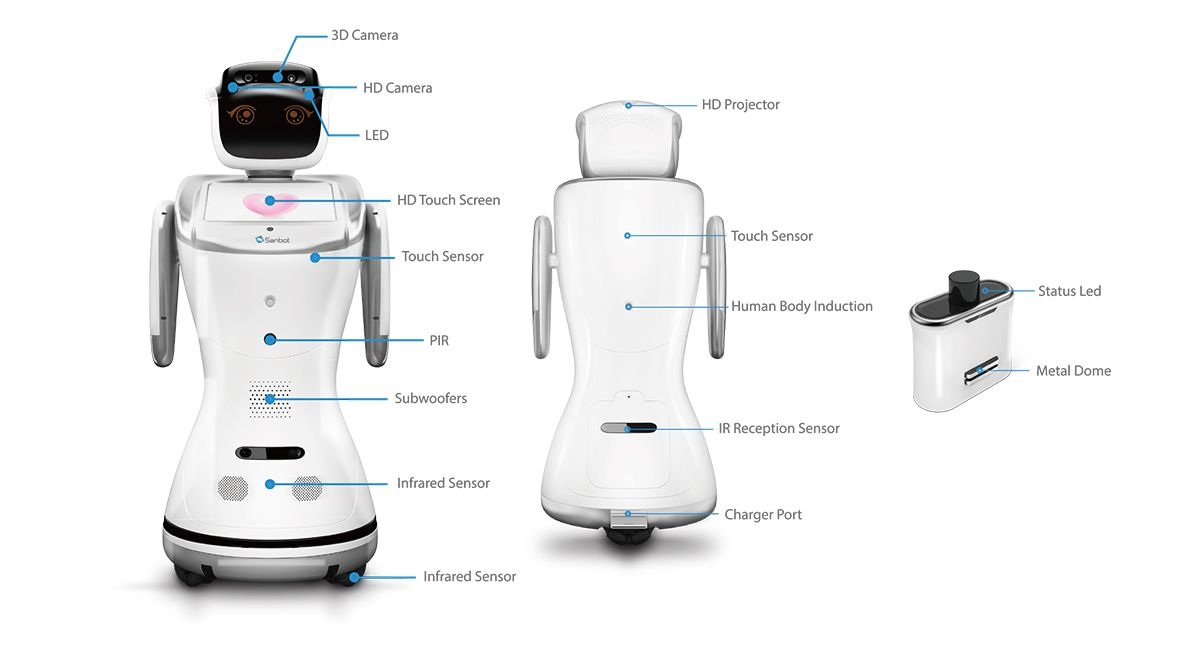
The Sanbot Elf is a Chinese humanoid robot from the company Qihan, launched in 2017. It features a 3D camera, HD camera, an Android tablet (which runs painfully slow due to a mediocre 2018 SoC — the Allwinner A83), animated eyes, a speech engine, LEDs, and motors throughout the body.

Picture of the Sanbot Elf, a Chinese robot launched in 2017 for around €10,000

Prior Work

Before getting my hands on the robot, I searched the internet for information about the hardware. It didn’t take long before I stumbled upon this great reverse engineering project by Vidicon and Matthijsfh. The repository contains a reverse-engineered block diagram and newly written firmware for the main board and head board.

Block diagram of mainboard from the sanbot_elf_hacking repository

This gave me the first clue that the Sanbot likely contains a separate power board supplying the system with 12V. Since the robot is mobile and powered by a 12V system, it likely uses a 4S Li-ion battery pack. From the sanbot_elf_hacking repository, it becomes clear that the battery communicates its status over SMBus. That brought back memories of medical battery packs that use a similar system, often with a rather annoying undervoltage lockout mechanism. Once triggered, that lockout can permanently disable the battery. Luckily, the IC used in the BMS is a BQ3055, a 2–4 series Li-ion battery pack manager with an integrated fuel gauge, which does not appear to implement this UVLO protection.

While digging a bit deeper, I also found this useful block diagram from Igor Lirussi’s thesis, which provides a more complete overview of the entire system.

Full system block diagram of the sanbot elf

This block-diagram gives away that it does everything over USB with easy to debug protocols. It gave me hope that we might eventually be able to upcycle the robot by replacing the tablet with our own tablet or computer, running custom software that communicates with the rest of the system.

Disassembling

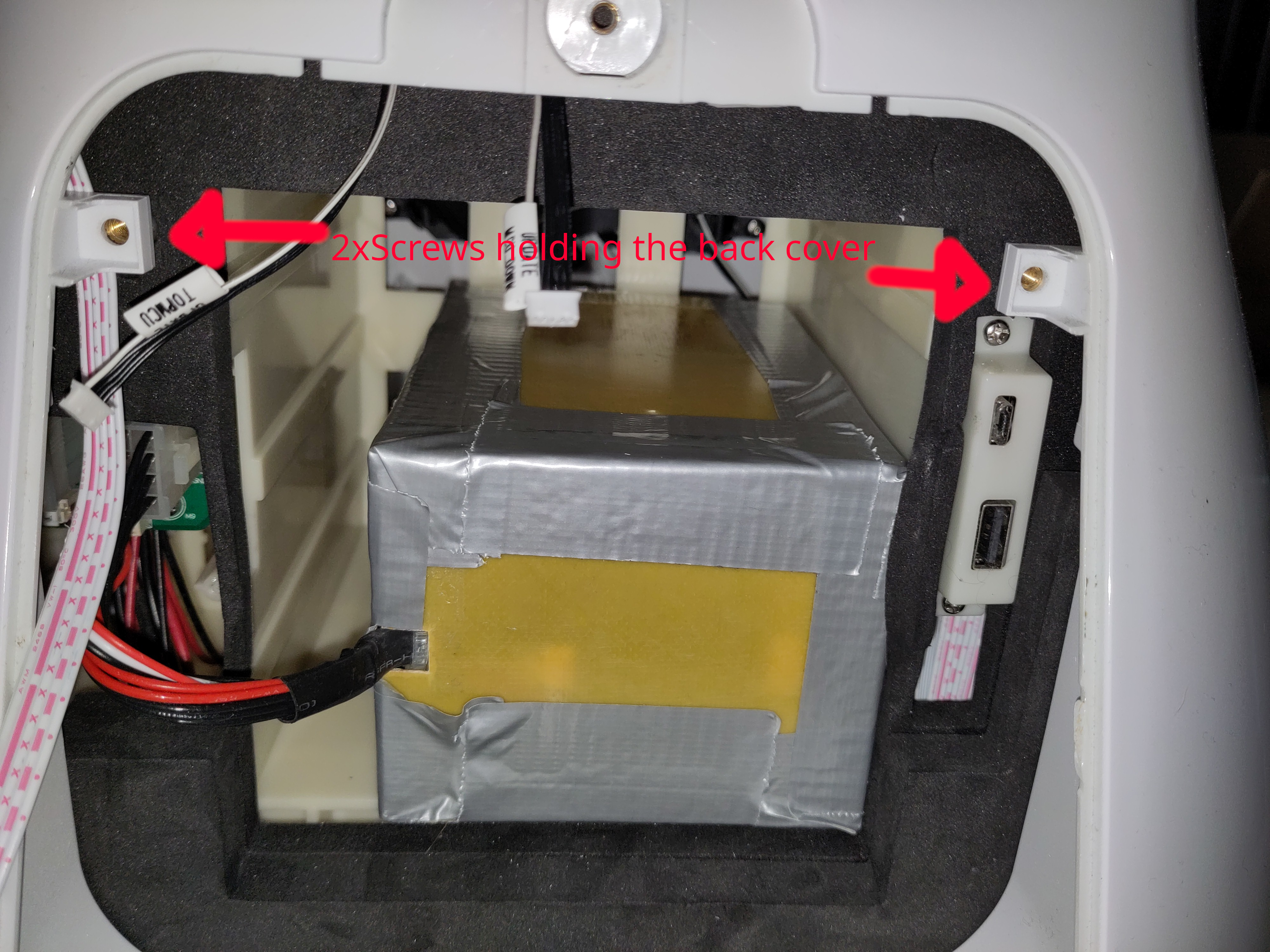
The battery compartment at the back is secured with a single screw. After removing it, you can unscrew the full back cover. Afterwards you can try to wiggle/pull it off. It has locking tabs, so it might feel a bit uncomfortable trying to get it off.

Battery compartment of the Sanbot Elf

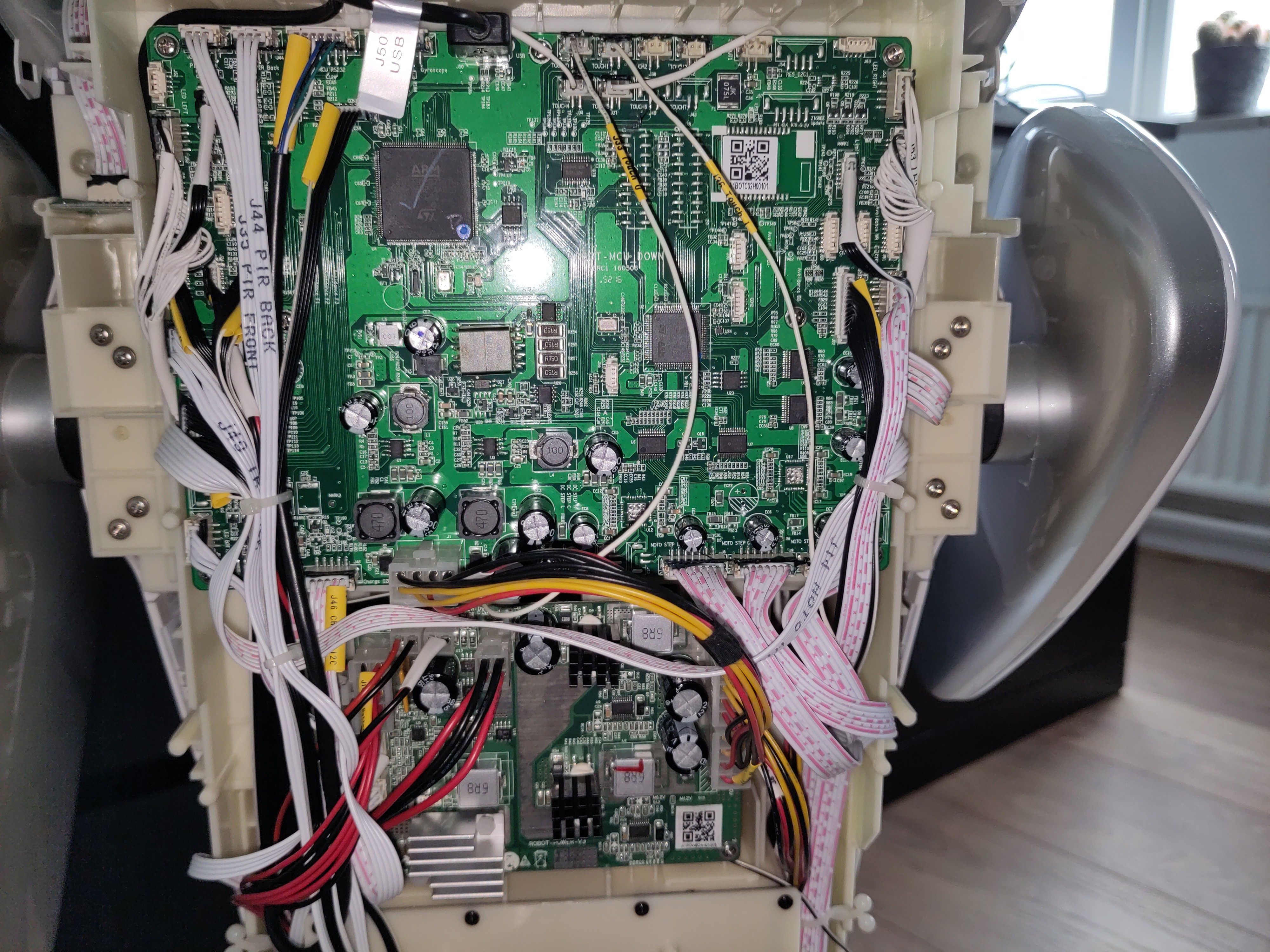
When it's off you will find two circuit boards at the back. The top one is the Mainboard and the other one is the power board. Picture of the circuitboards on the back (main- & powerboard)

Troubleshooting the battery

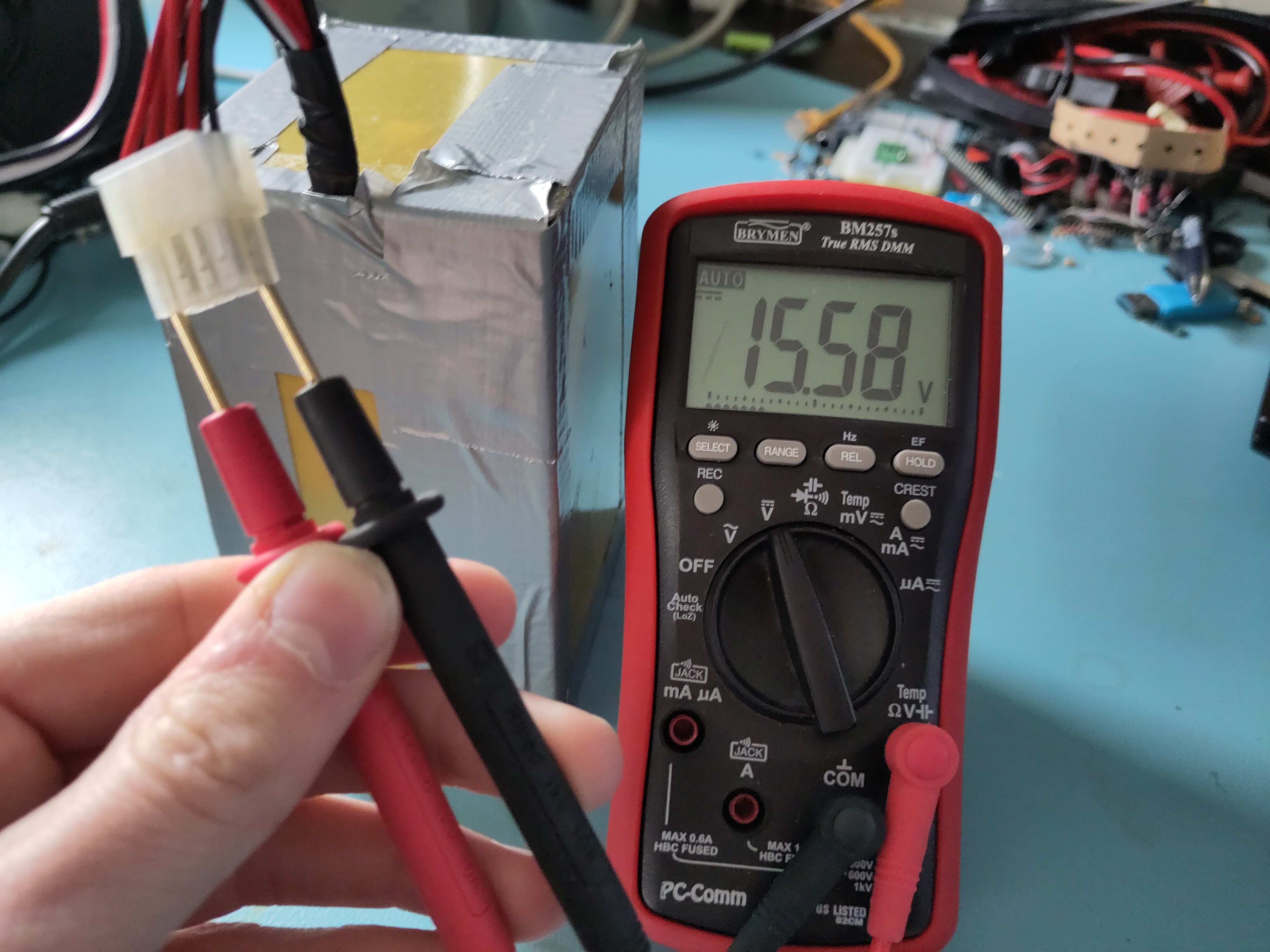
First thing that got my attention is the battery. First I checked the voltage, which seemed to be fine (@15.58V means ~40% SOC): Measurement of battery voltage using multimeter

That meant that the BMS is allowing to discharge the battery. Good! Maybe it does not accept charging, as the battery might be unbalanced or any other fault event has occurred. So let's try to read it using I2C...

As we have found from earlier research, we know that it has a BQ3055 charge-ic. I really want to read it out using an Arduino library, as writing my own library would be time-consuming. So I could unfornately not find a direct software library for this ic, however it's newer sibling the BQ40Z50 does have a library. When checking the datasheets and application notes, not much seems to have changed, even the addresses match. So this must work! Right?

Astalavista, I am in!

Serial monitor output of the ESP32 reading out Sanbot's battery

Using a cheap ESP32, I had laying around and a simple arduino sketch, I managed to read out the battery.

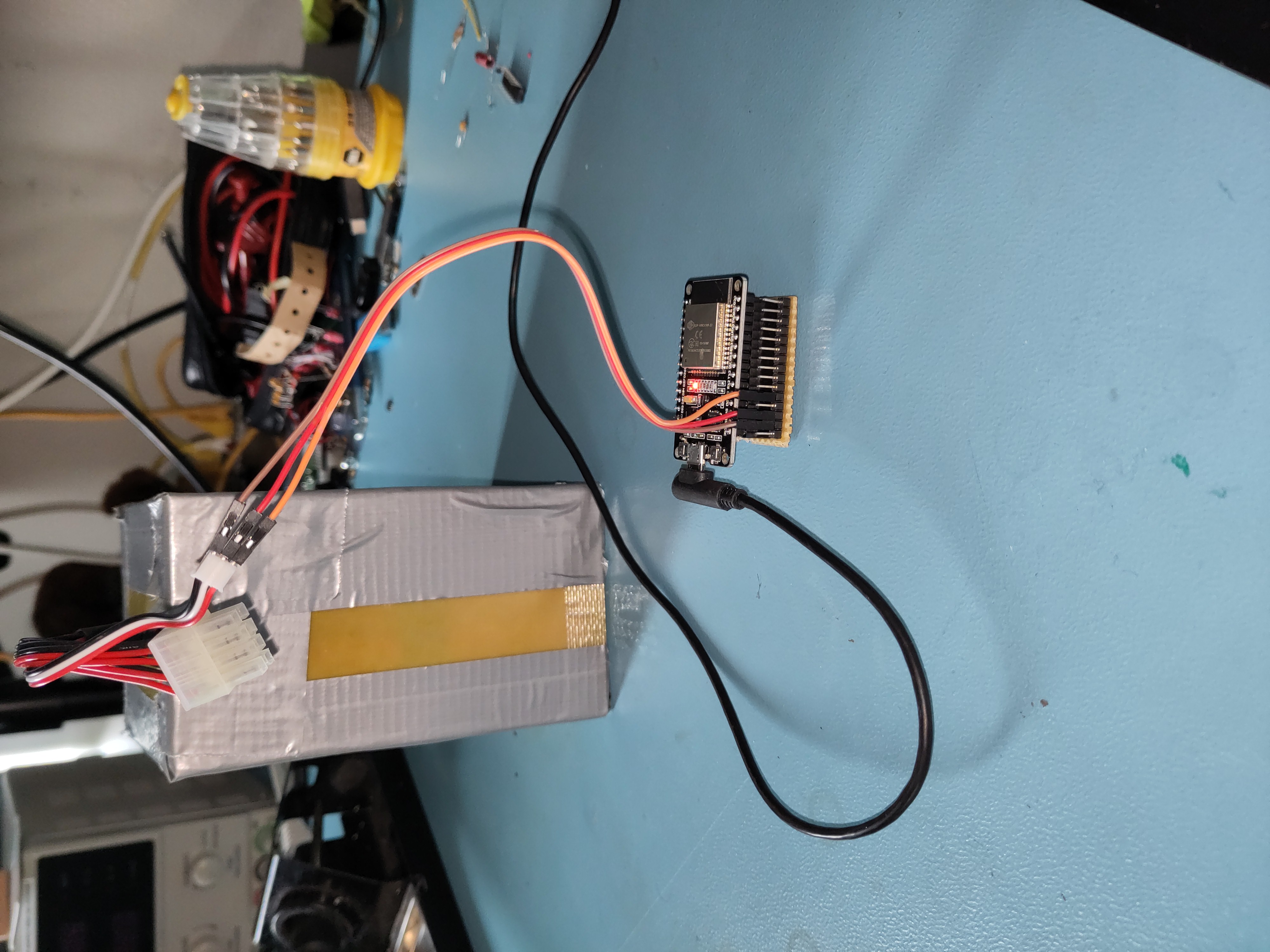
Picture of the battery connected to an ESP32 reading it out

Link to the battery readout script:

sanbot_battery_readout_script.ino

From the serial monitor output it became clear that although the battery is not in a good state (cell imbalance of >0.5V). Such an imbalance is problematic, as it increases stress on the weaker cell and can accelerate degradation or, in worst cases, lead to unsafe operating conditions. Interestingly and somewhat concerning, it does try to charge, as the charging mosfets are not blocked.

This suggested that even if the battery were replaced, the issue might still lie within the Sanbot’s internal charger circuitry.

Troubleshooting the power board

The power board is located underneath the mainboard and consists of a battery-charger ic (BQ2461X) and two synchronous 12V buck converters (LM25116).

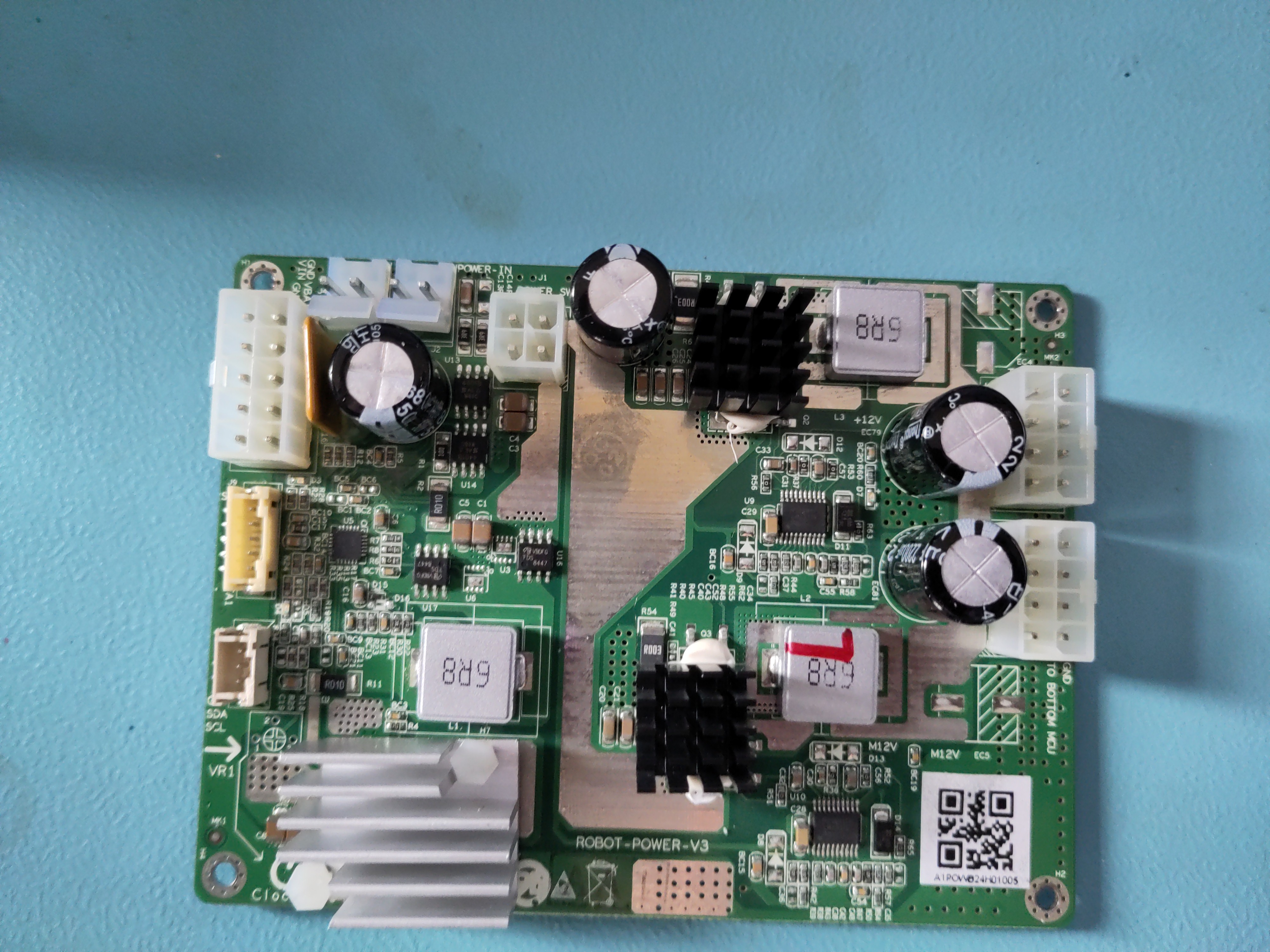
Sanbot power board

When plugging in my lab-bench power supply to test the power board, I noticed it completely tripped my maximum current (at 2A).

Sanbot charger shorting

This indicated a fault on the board. Since the charger IC itself was not heating up, the problem likely had to be close to the power input stage. I noticed this reverse-protection diode is letting current flow both ways and generating heat?!

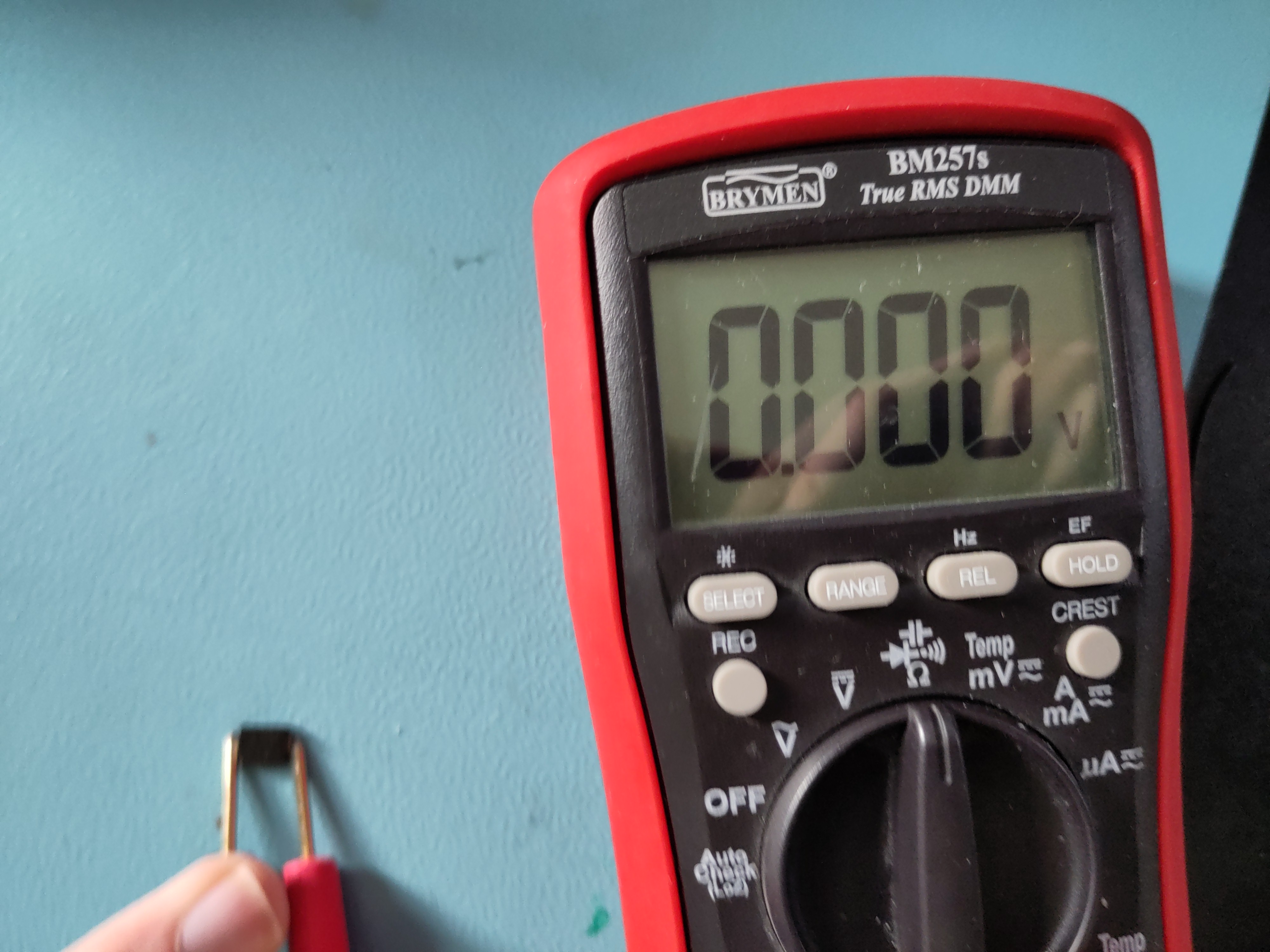
Measuring the diode in-circuit showed nearly zero resistance in both directions, indicating it had shorted internally. Since this diode sits directly on the input power path, a short effectively placed the supply across ground, explaining the immediate 2A current limit on the bench supply.

Sanbot power board diode measurement

I removed the faulty diode and replaced it with a spare from my parts bin. After reassembly, the board functioned normally again

Sanbot power board old diode near new one (which has been soldered)

Guess what?! It showed the charge symbol! Mission accomplished.

Sanbot battery charging once again!

P.S. The picture of bot charging is old picture, that's why SOC does not match serial monitor output

Conclusion

Due to a shorted reverse-protection diode on power board the robot wouldn't charge anymore. It was easily repaired with a new 5-cent diode. Although the robot now charges, the battery pack shows significant imbalance (>0.5 V delta), which suggests aging cells. Replacement is recommended for long-term reliability.